Add Products
This section provides detailed information on browsing catalogs and adding the products in the project.
Also, information on searching a product and adding it in the project is provided in this section.
Browse and Add Products
You can add products to your project by browsing them from catalogs.
There are three main catalogs according to products available in them:
Build
Furnish
Decorate
Build
Build catalog contains products useful for designing the building structure of the project.
For example: Doors, Windows, Staircases and Technical Equipment.
Build catalog is divided into five sub-catalogues, according to building product available.
Exterior doors
Example: Front doors, patio doors, and garage doors.
Interior doors
Example: Folding doors, and sliding doors
Windows
Example: Simple windows, double windows, sliding windows, and patio doors.
Staircases
Example: Straight staircases, helical staircases, quarter turn staircases, and double quarter turn staircases.
Technical Equipment
Example: Electricity, heating and cooling, plumbing, and construction.
False Ceilings
Example: Ceiling light, ceiling sphere, ceiling cubes.
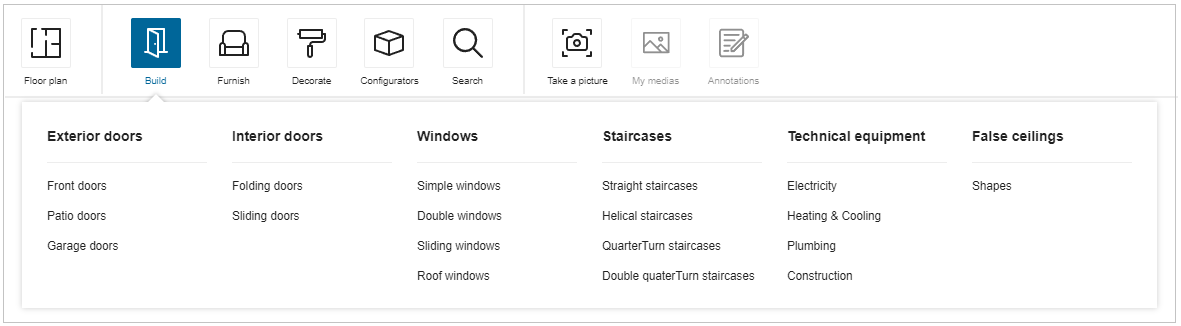
Steps to add a building product to project:
- Click Build.
- Select product type from building products.
Example: Technical equipment >> electricity.
List of products display.
Recommendation:
To view all products from sub-catalog, click sub-catalog product name.
Example: Build > Technical equipment
Click maximize for better display mode, click minimize for previous mode.
- Select product.
Product is added to project.
After adding a product from the catalog, the product remains in the selected state, so that the manipulator options (like Elevate, Move, Rotate, etc) can be used. Also, the editing toolbar (like Edit, Position, Duplicate and Delete) appears for the inserted product on closing the catalog browser.
False Ceiling
You can add the false ceiling products to the room.
- Click the Shapes option of the False ceilings.
The catalog with available ceiling products are displayed, as shown below:
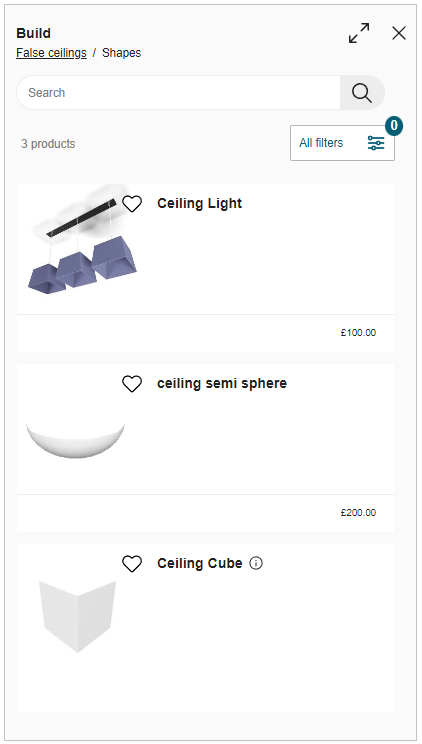
- Select the product from the catalog.
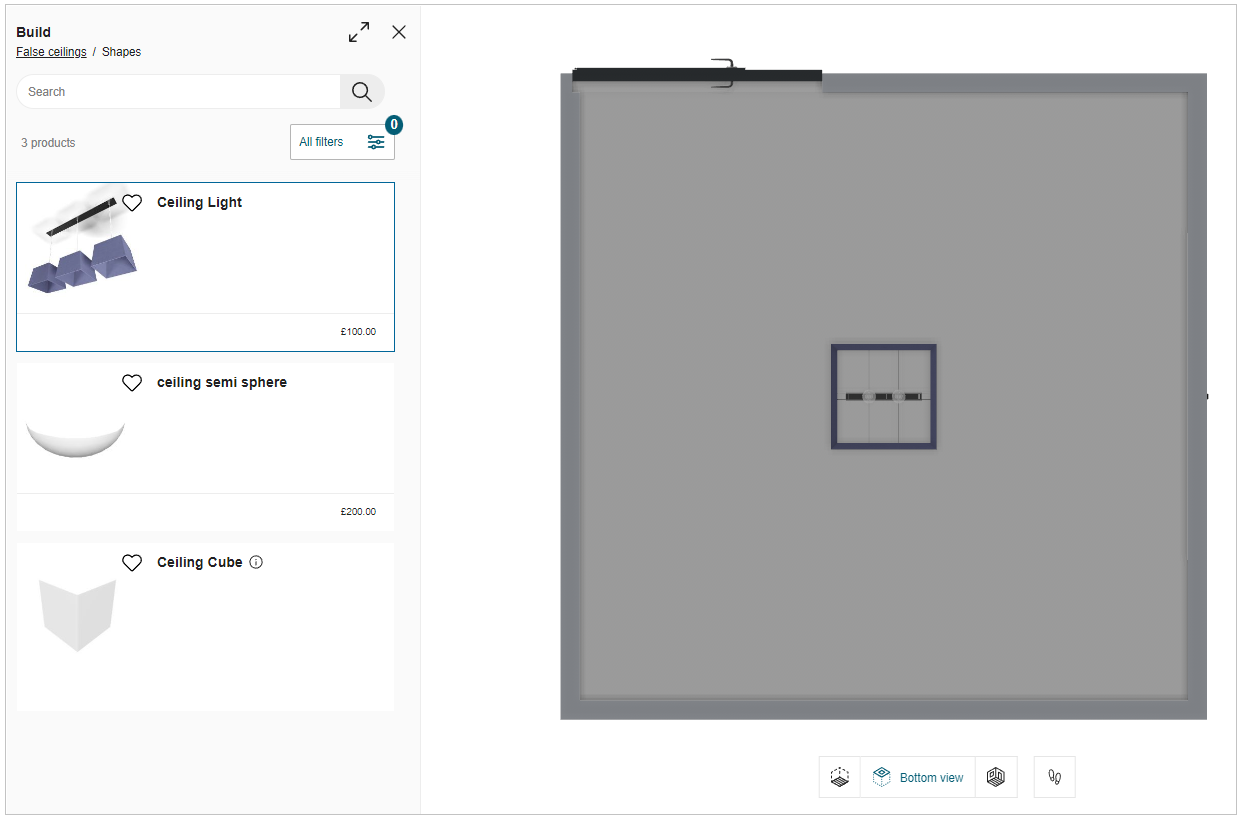
A notification popup message to Switch to false ceiling view is displayed, as shown below:

- Click the Switch to false ceiling view the ceiling view is displayed, as shown below:
Furnish
Furnish catalog contains products useful for furnishing the home design in project.
For example: Sofas, Beds, Chairs, Mirrors, Toys and etc.
Furnish catalog is divided into six sub-catalogues, according to room types.
Living room
Example: Sofas, armchairs, poufs, coffee and side tables, living room storage, fireplaces, wood burning stove and accessories, and TV and media furniture.
Bedroom
Example: Beds, nightstands, mirrors, chest of drawers, and wardrobes.
Kitchen
Example: Islands and carts, kitchen set, chairs and stools, appliances, and accessories.
Bathroom
Example: Sinks and faucets, bathtubs and showers, toilets, mirrors, towel holders and dryers, storage, washer and dryers, and accessories.
Dining room Example: Tables, bars and stools, chairs, benches, storage.
Baby and Kids
Example: Beds and cribs, junior chairs, desks, nursery, children’s bedroom furniture, decoration accessories and toys.
3D Content
You can import the 3D Content to the planner and view it in the My Content section.
Furnish
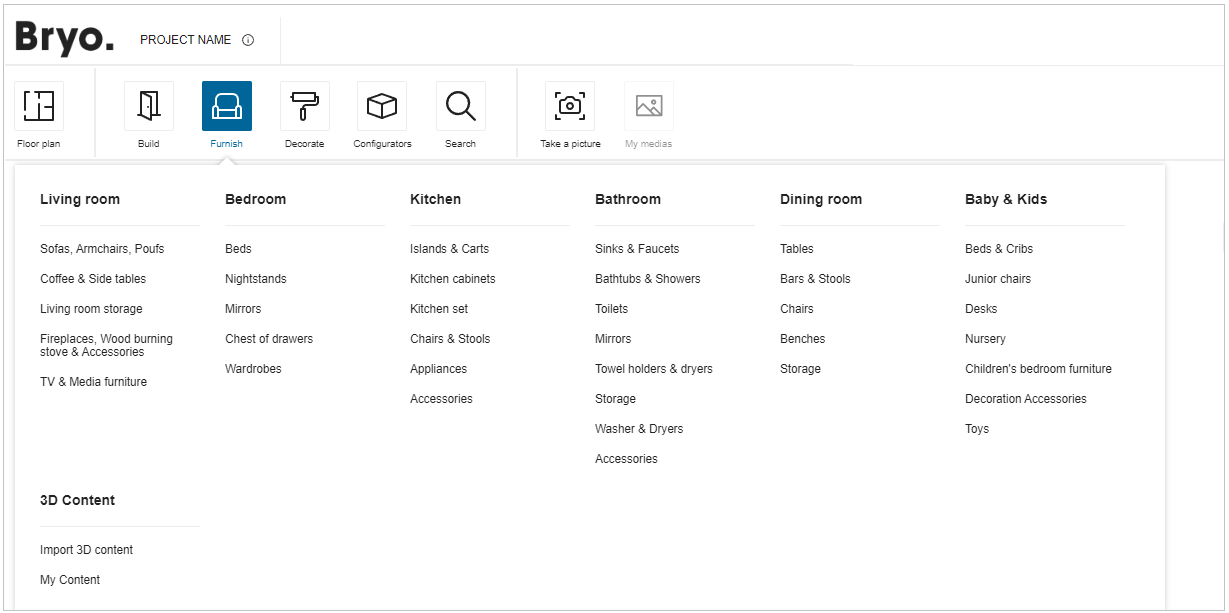
Steps to add a furnishing product to project:
- Click Furnish.
- Select product type from home furnishing products.
Example: Baby and Kids >> Toys.
List of products display.
Recommendation:
To view all products from sub-catalog, click sub-catalog product name.
Example: Furnish > Baby and Kids.
Click maximize for better display mode, click minimize for previous mode.
- Select product. Product is added to project.
Import 3D content
This section explains the steps to import the 3D content in the planner.
- Click the Import 3D content option, the login window is displayed if not logged in, as shown below:

- Click the Continue button, the 3D Upload window appears, as shown below:
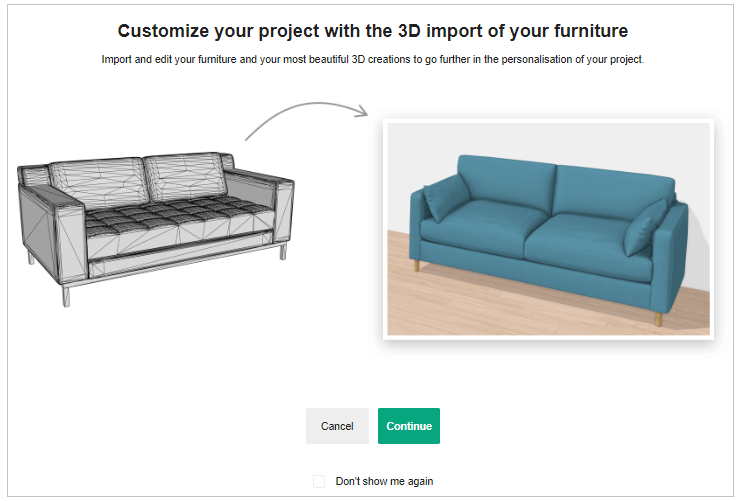
- Click the Select your file(s) option to upload the 3D model file from the folder.
Also, you can drag and drop the 3d model file.
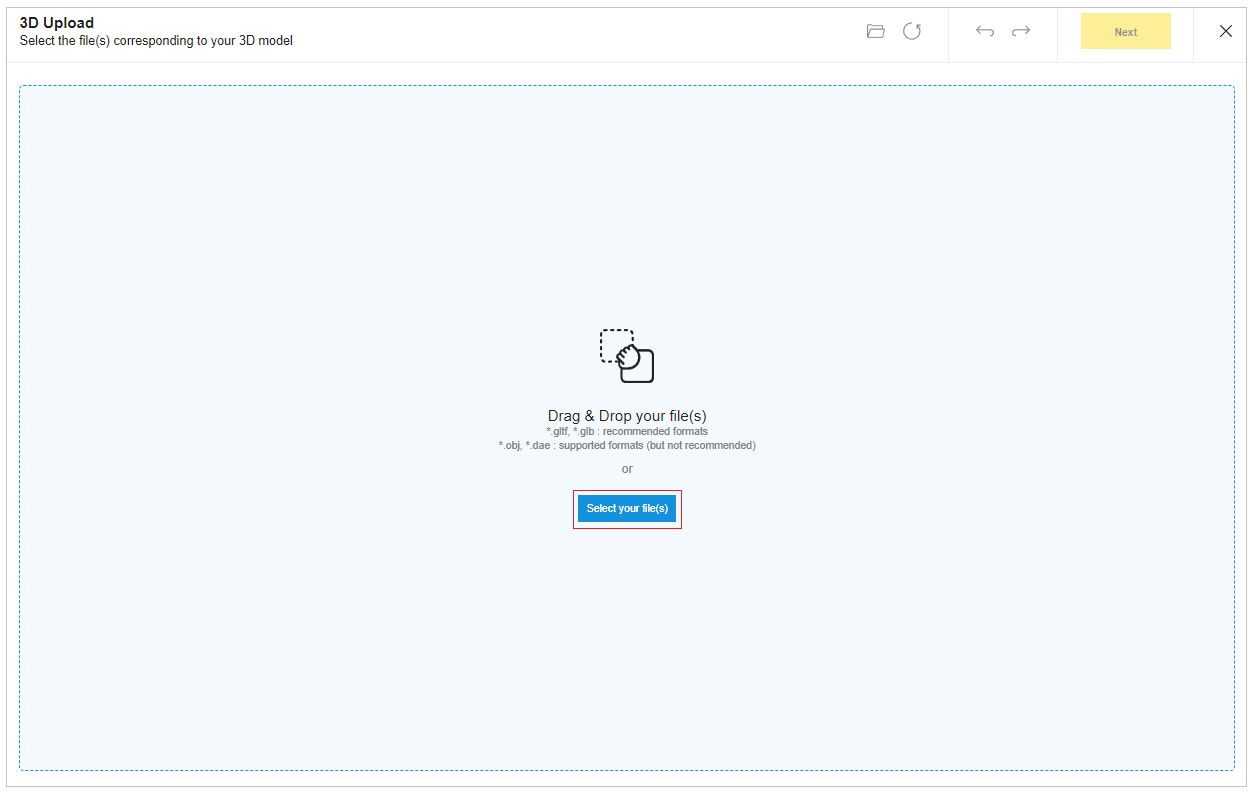
- To upload the file.
Select .obj, .gltf, .glb or .dae format file from the folder, the file is uploaded as shown below:
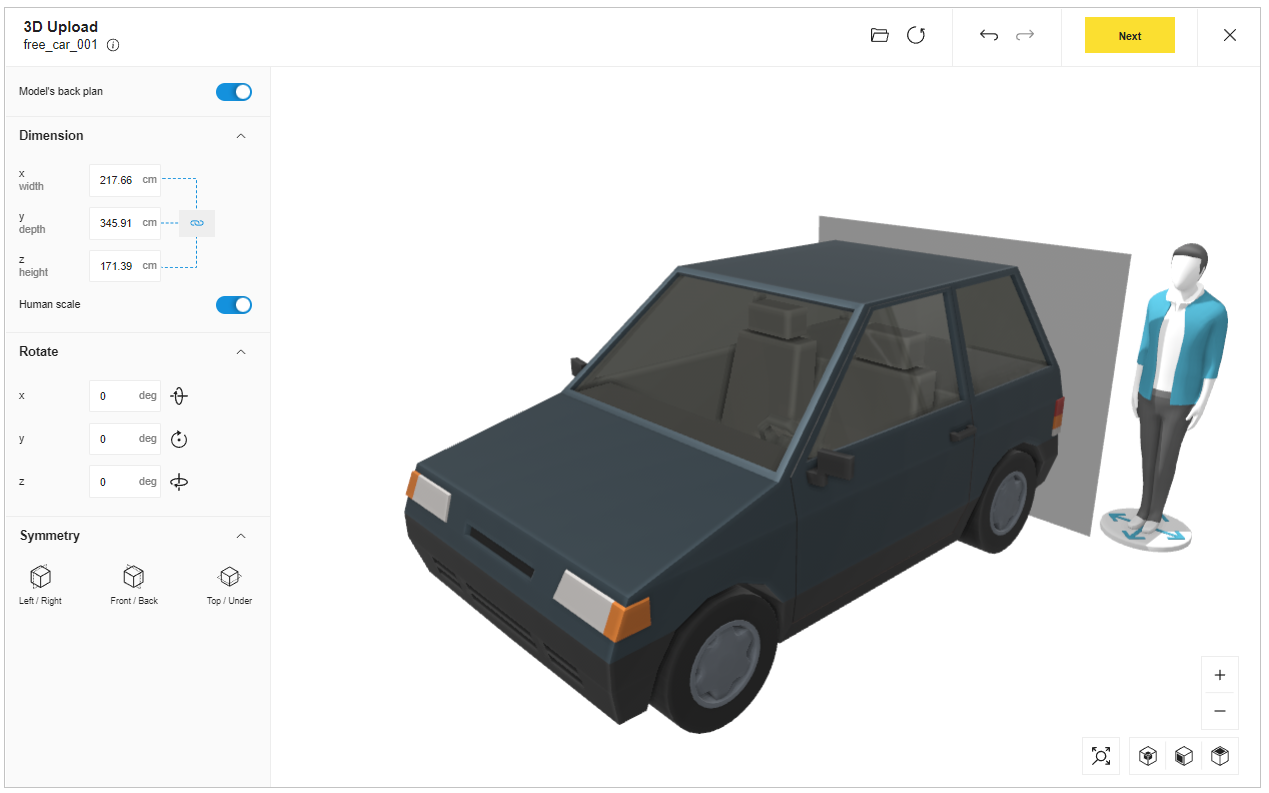
Model's back plan
Toggle on/off the Model's back plan option to
Human scale
Toggle on/off the Human scale option to activate/deactivate the human avatar.
- Dimension
You can modify the x(width), (y)depth and (z)height dimension of the 3D model, as shown below:

- Rotate
The rotate function allows you to set a rotation angle on X, Y and Z axes, as shown below:
The values are in degrees.

- Symmetry
You can apply the symmetry to your 3D model along the X(left/right), Y(front/back), and Z(top/bottom) axes.

The Common Toolbar
Following commands are available in this section:
| Icon | Function | Description |
|---|---|---|
 | Toggle measure lock | To enable/disable independent measurement along the X, Y, and Z axes. |
 | X axis rotate | To rotate the 3D model along the X axis. |
 | Y axis rotate | To rotate the 3D model along the Y axis. |
 | Z axis rotate | To rotate the 3D model along the Z axis. |
 | Left/Right | To symmetry 3D model along the X(left/right) axes. |
 | Front/Back | To symmetry 3D model along the Y(front/back) axes. |
 | Top/Under | To symmetry 3D model along the Z(top/bottom) axes. |
 | Center model | To center the 3D model. |
 | Angle view | To side view the 3D model. |
 | Front view | To front view the 3D model. |
 | Top view | To top view the 3D model. |
 | Zoom | To zoom in the 3D model. |
 | Unzoom | To zoom out the 3D model. |
 | Open from disk | To open the 3D model from disk. |
 | Restore default model | To restore the default 3D model. |
- Click the Next button, the window to Upload your model is displayed, as shown below:
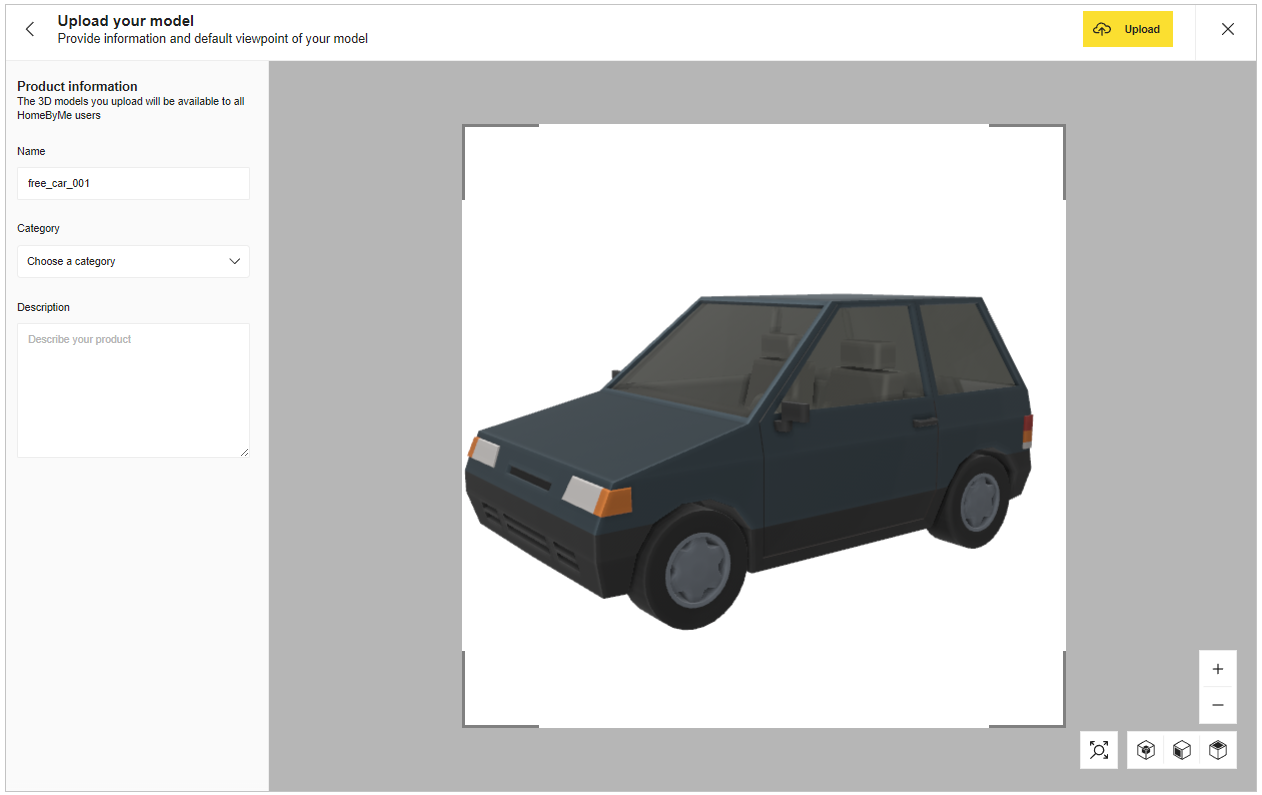
Product Information
In this section you can modify the product information.
-
Name
You can modify the name of your 3D model. -
Category
You can choose the category from the different categories available, as shown below:

- Description
You can provide a detailed description about your 3D model.
- Click the Upload button to upload your 3D model.
A pop up is displayed once the model is uploaded, as shown below:

My content
You can view the uploaded 3D model in My content section, as shown below:
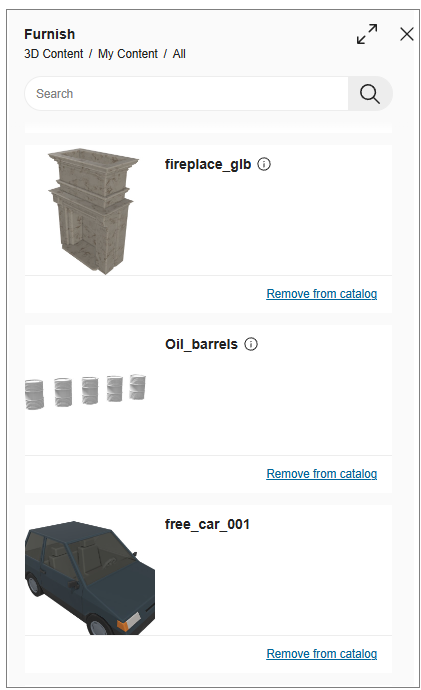
To Remove the 3D model:
- Click the Remove from catalog option.
The pop-up window appears, as shown below:

- Click the Remove button, to remove the 3D model permanently.
A notification appears confirming Model removed successfully!, as shown below:

Decorate
Decorate catalog contains products useful for decorating the home with colors and accessories in project.
For example: Lighting, plants and flowers, etc.
Decorate catalog is divided into four sub-catalogues, according to decoration type.
Decoration Accessories
Example: Lighting, plants and flowers and home decor.
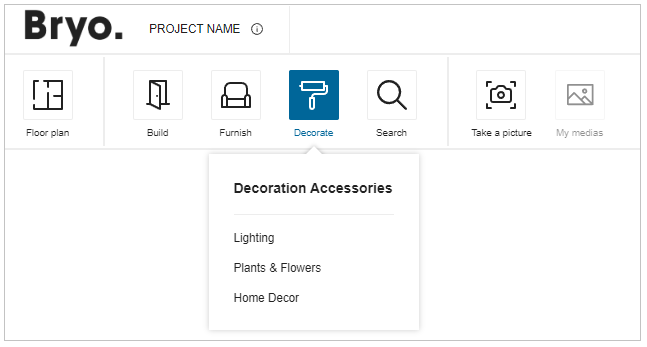
Steps to add a decoration to project:
- Click the Decorate option.
- Select product type from decoration products.
Example: Decoration Accessories >> Lighting.
List of products display, as shown below:
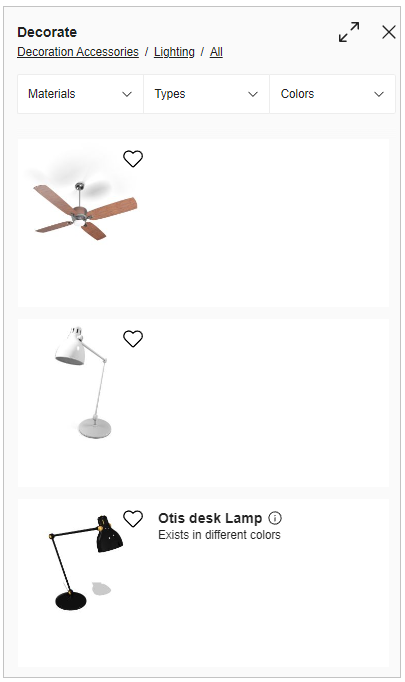
Recommendation:
To view all products from sub-catalog, click sub-catalog product name.
Example: Decoration Accessories >> Lighting.
Click maximize for better display mode, click minimize for previous mode.
- Select product.
- Select wall/floor to add product to it.
Product is added to project. - Click close after applying the product.
On adding products to project, if there is no enough space for the product, it will be added in front of the avatar.
Configurators
You can design your kitchen using the configurator in the home application.
To design your kitchen:
- Click the Configurator option, the available configurators are displayed, as shown below:

- Click the Kitchen Configurator option, the window to Save your project, is displayed, as shown below:

- Click the Save button, the kitchen configurator is displayed, as shown below:
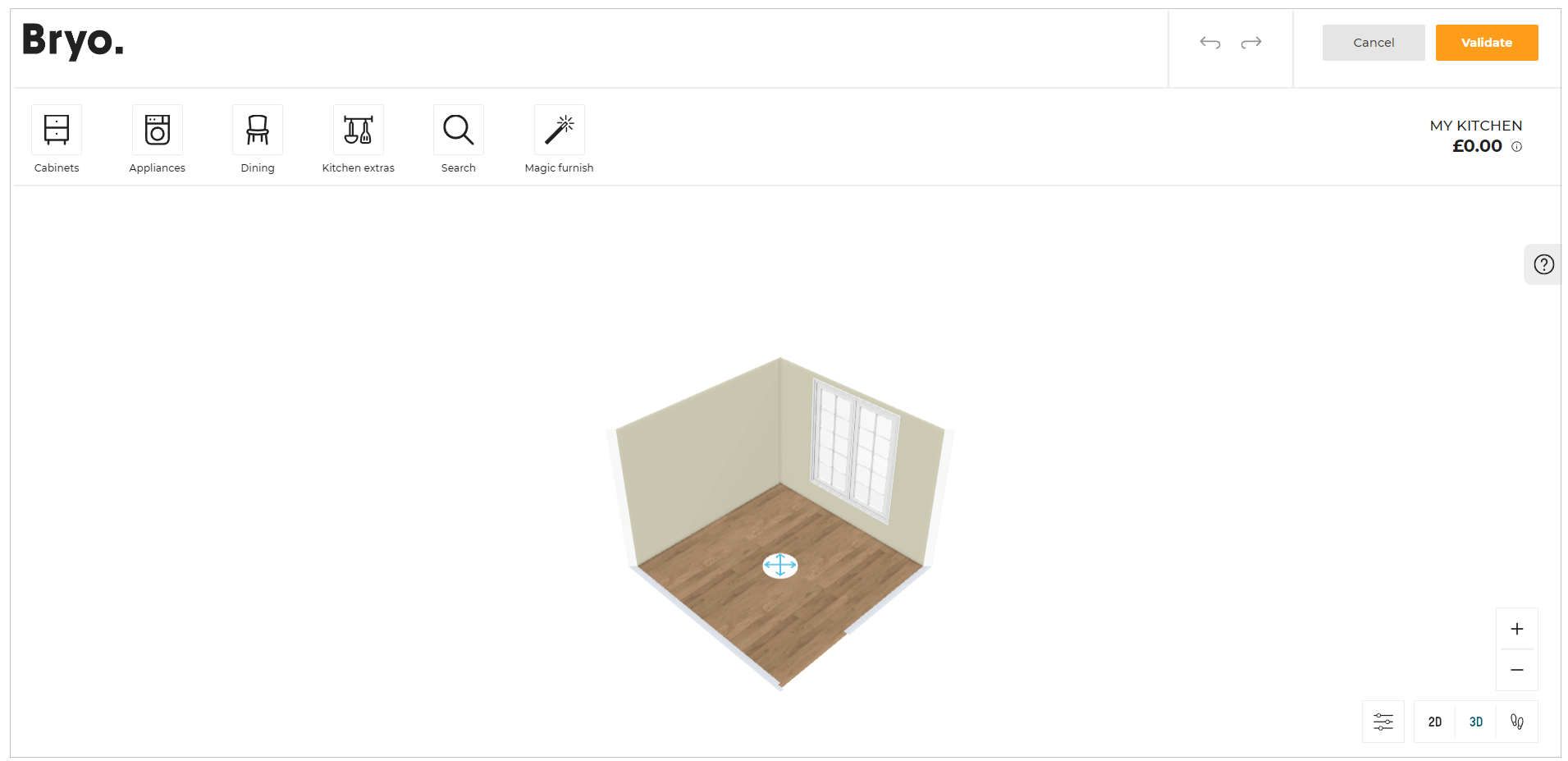
If there are multiple rooms, then after selecting the configurator, the window appears to Select a room for your kitchen.
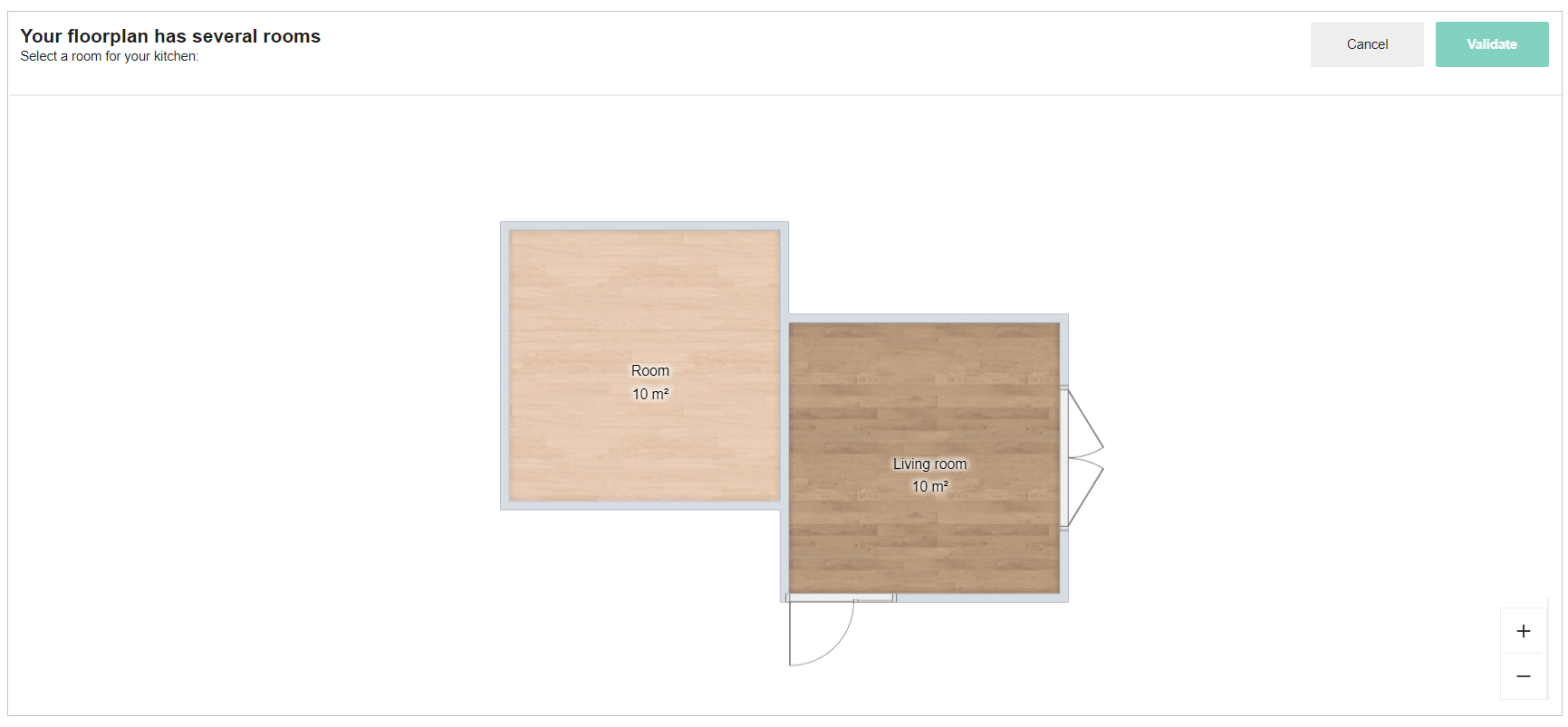
Select a room for your kitchen and click the Validate button to continue.
Click the Cancel button to return back to the planner.
While opening the kitchen configurator, the loader appears with the brand logo before loading the kitchen configurator, as shown below:
- Click the Magic Furnish option, the Smart kitchen designer tool tip is displayed, as shown below:

- Click the Begin button, the position to water supply window is displayed.
Select the wall or the circle for water supply, as shown below:
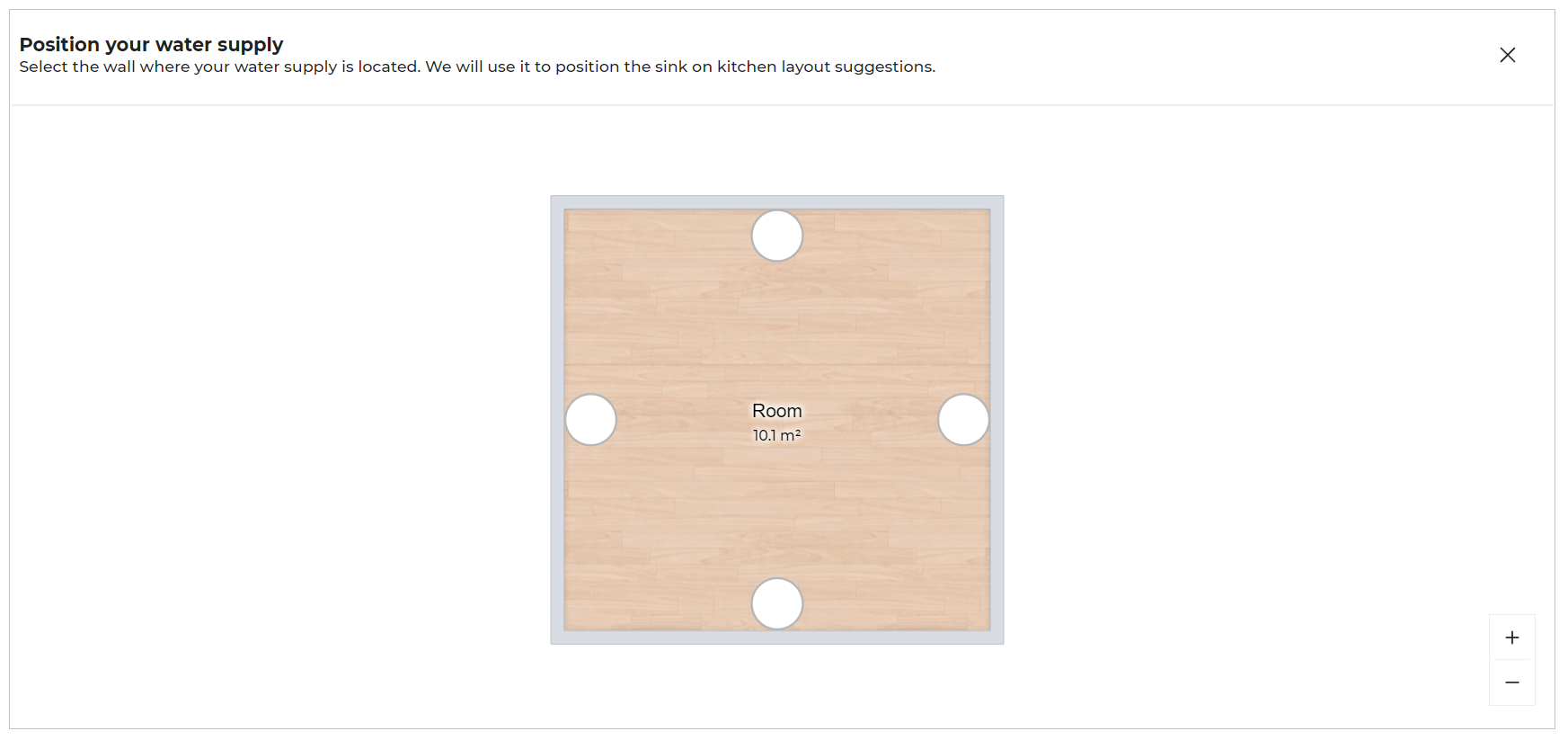
The kitchen layout with the best design according to the room dimensions are displayed, as shown below:
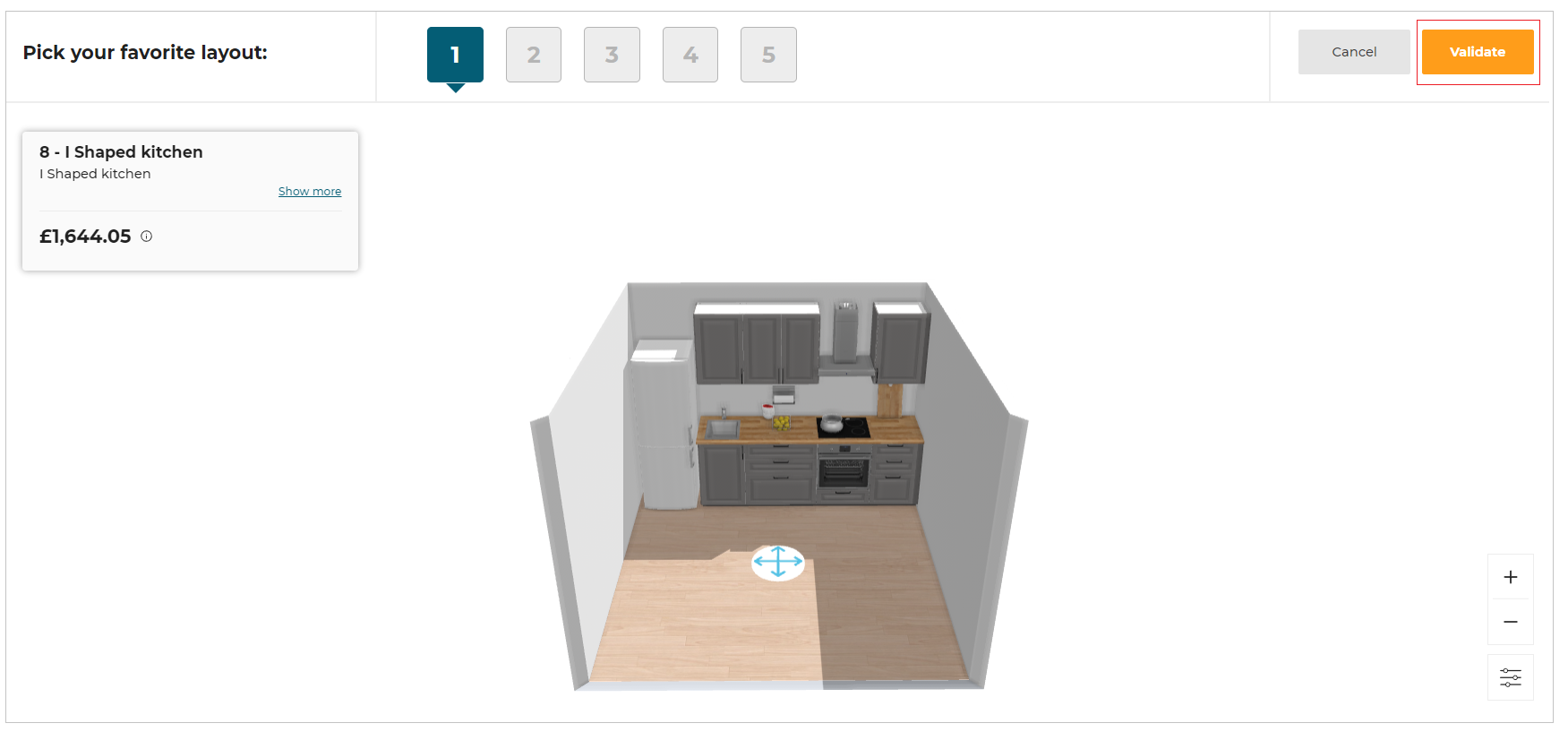
- Click the Validate button once the layout of the kitchen is selected.
The selected layout is displayed, as shown below:
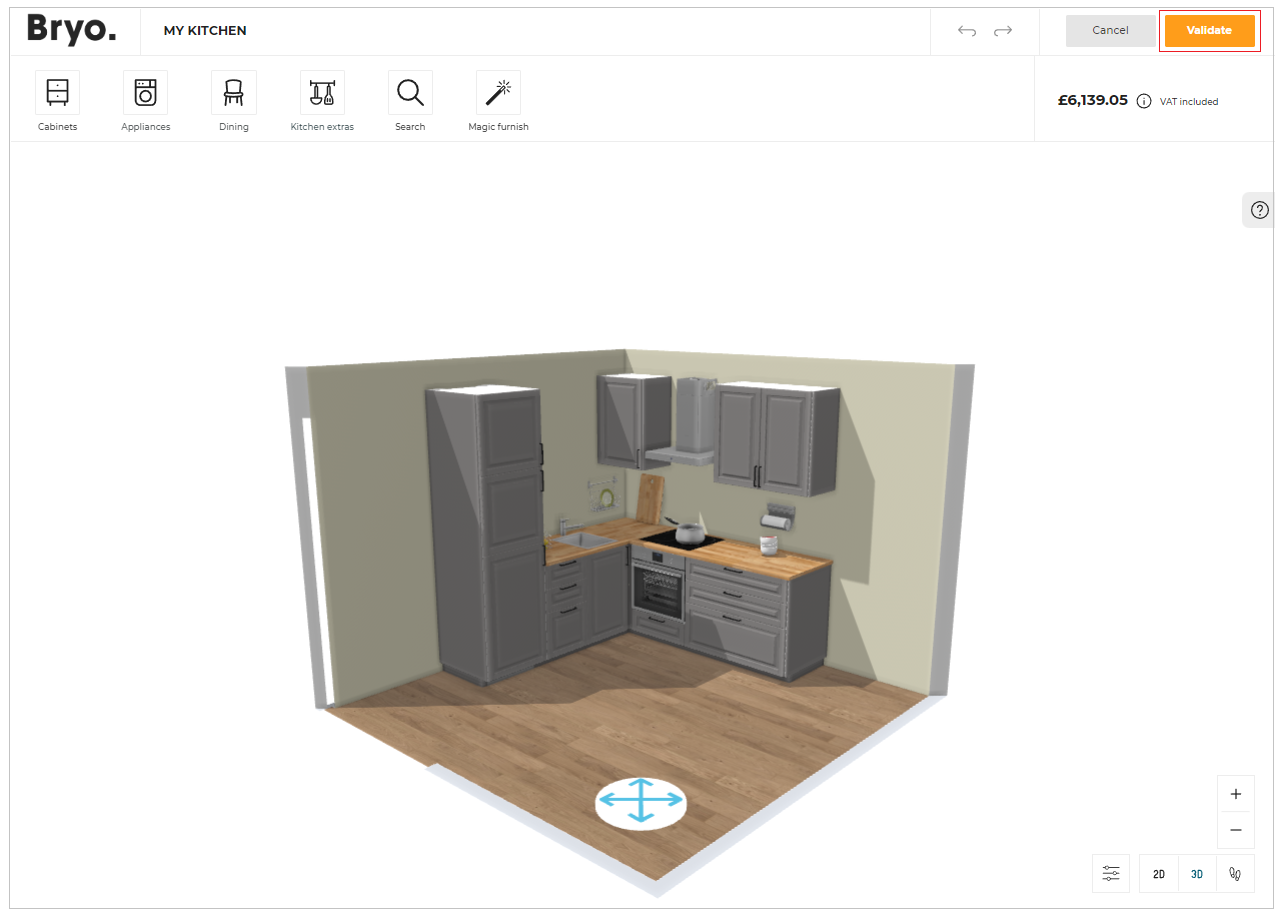
For more information on how to design your kitchen, please refer Design Your Kitchen 🔗.
- Click the Validate button once the modification of the kitchen is completed.
Expired products
If your project consists of expired product, you can replace or delete the product.
- Click the
 icon, the Help center is displayed, as shown below:
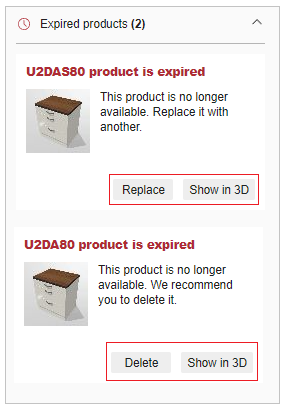
To locate the expired product in the project, click the Show in 3D option, the product is displayed, as shown below:
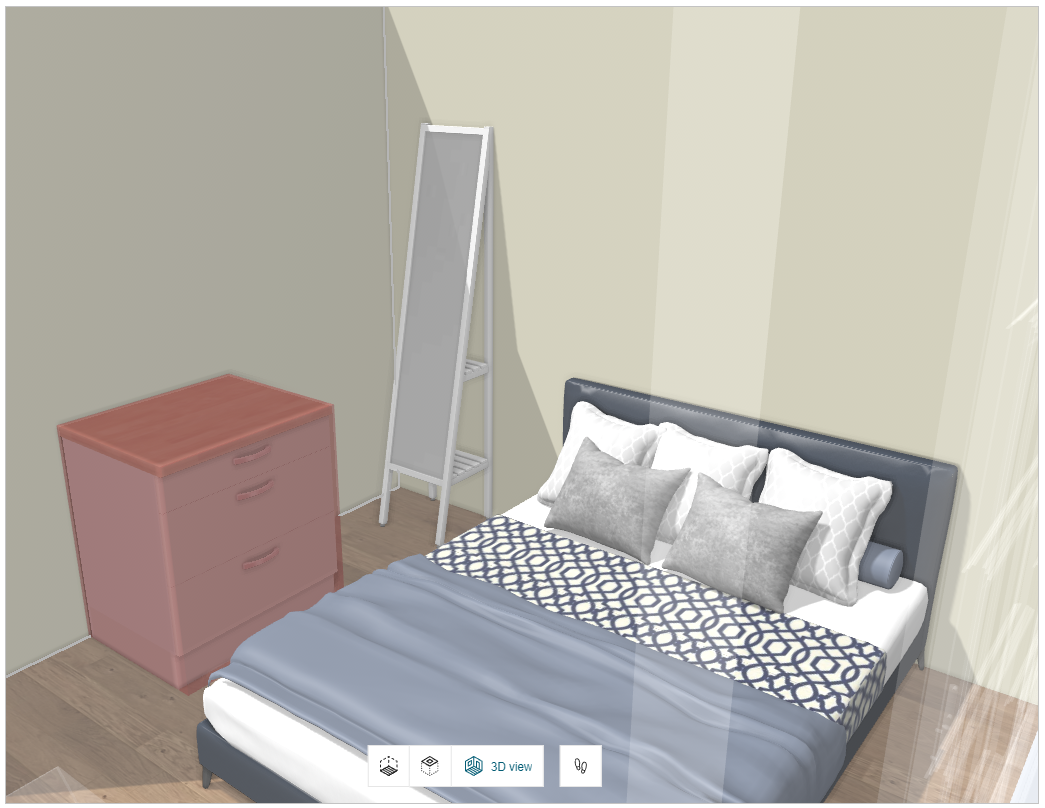
- To replace the expired product:
- Click the Replace button.
The Replace an expired product pop-up is displayed, as shown below:
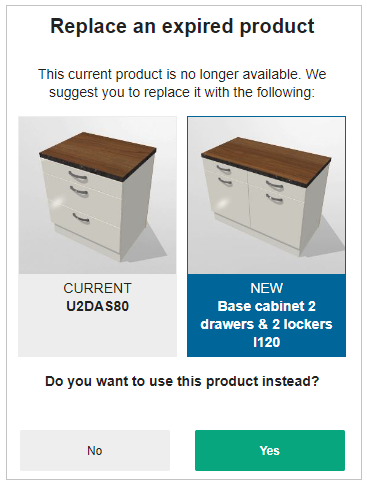
- Select the Yes option, to replace the product.
If there is no replacement possible for the expired product, the Price is not available is displayed for project price.
- To delete the expired product:
- Click the Delete button.
The confirmation pop-up message to delete the expired product is displayed, as shown below:
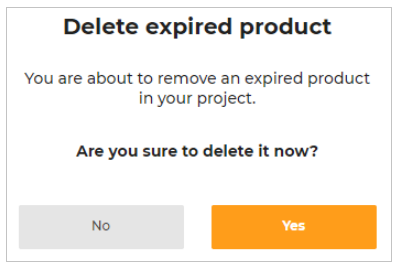
- Select the Yes option, to delete the expired product.
Search and Add Products
You can search a product in search bar to add to your project.
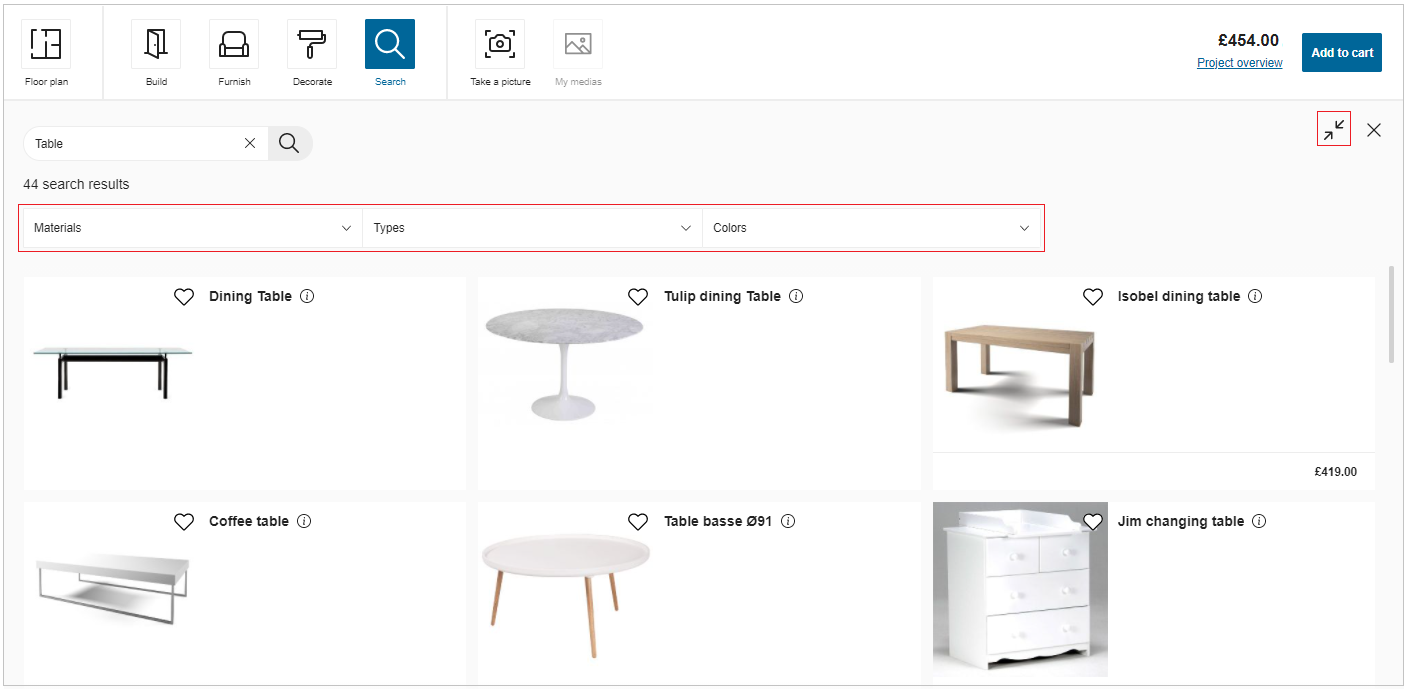
To search for a product, click Search.
You can search a product by its feature (type/reference/color/material, etc.).
- Enter the product feature.
- Click search.
List of products display. Click maximize for better display mode, click minimize for previous mode. - Filter products for certain type of products to display.
- Select product to add to project.
Note:
On adding products to project, if there is no enough space for the product, it will be added in front of the person placer.