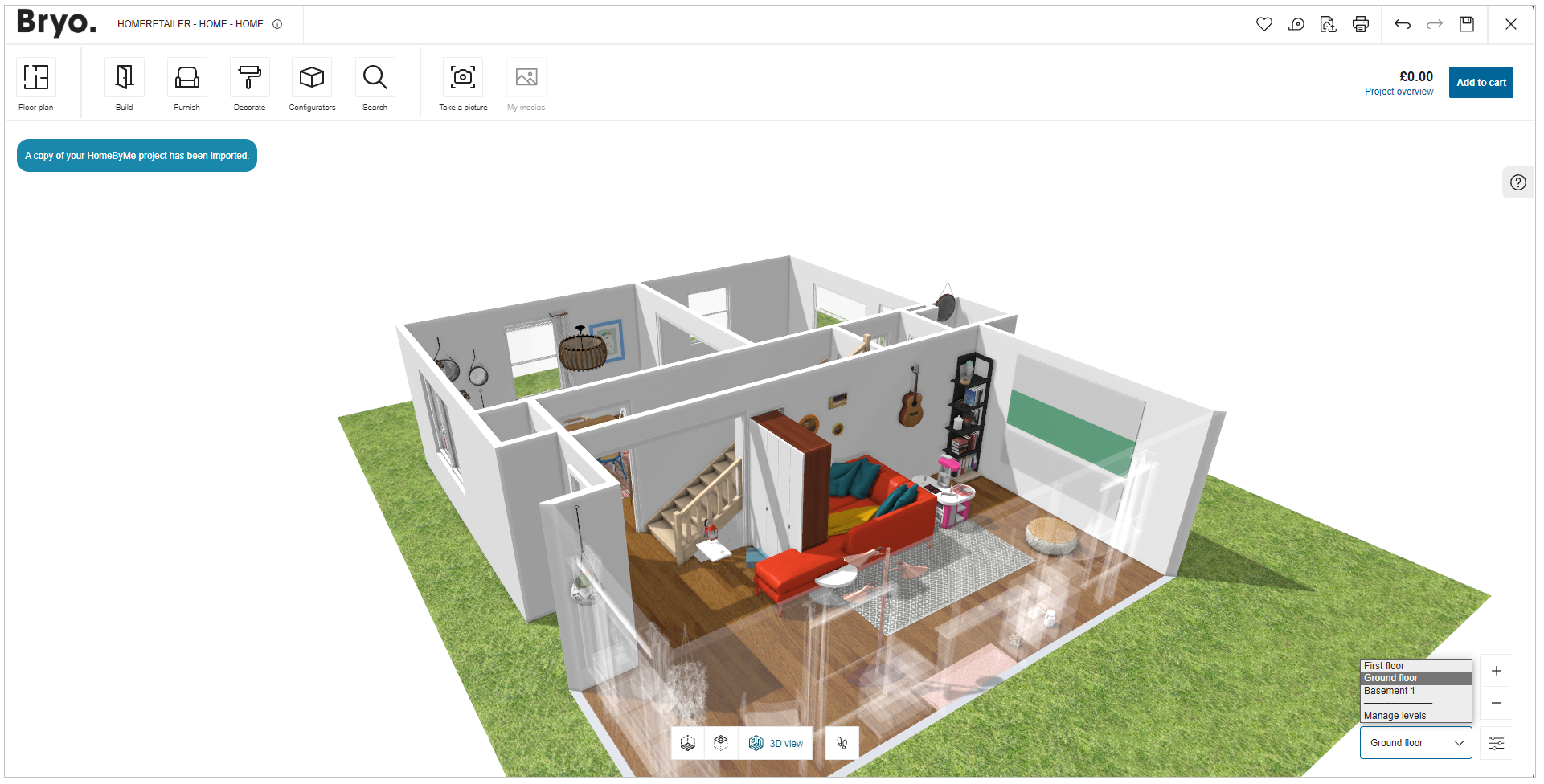
From a HomeByMe Project
This section provides brief information on "HomeByMe" and steps on importing a "HomeByMe" project into "HomeByMe for Home Retailers" website.
About "HomeByMe"
"HomeByMe" is an online 3D home designing application, where one can easily create detailed floor plans, test furniture with decorative elements, and experience virtual immersion in their dream homes.
This home design application is best used for creating, planning, and managing home-related projects.
Using a HomeByMe Project
To import a copy of a HomeByMe project into the Home Retailers application.
- Click the Use a HomeByMe project option.
An onboarding page is displayed explaining the different steps to import your HomeByMe project to design your room.
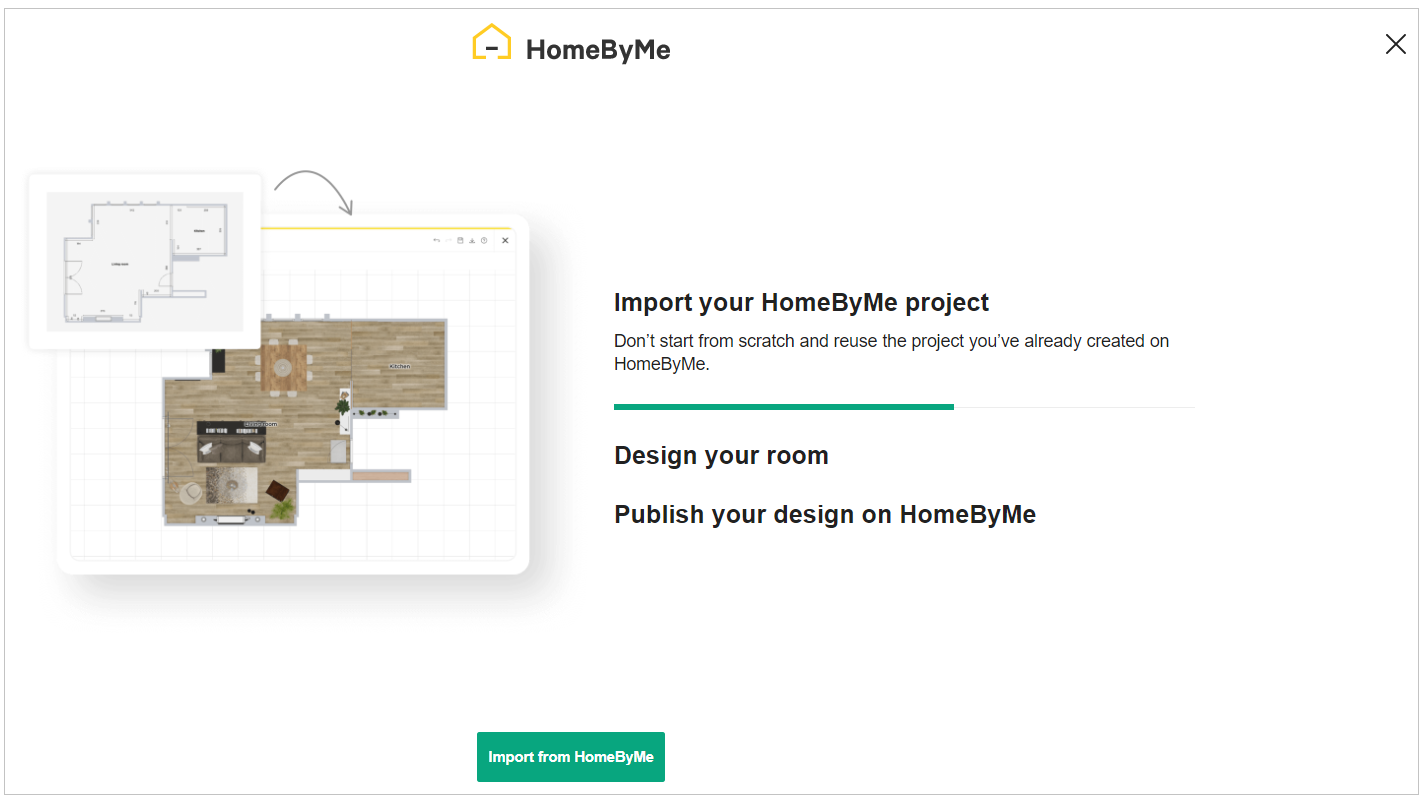
- Click the Import from HomeByMe button.
If you hav not already logged in to HomeByMe, a login page appears, as shown below:
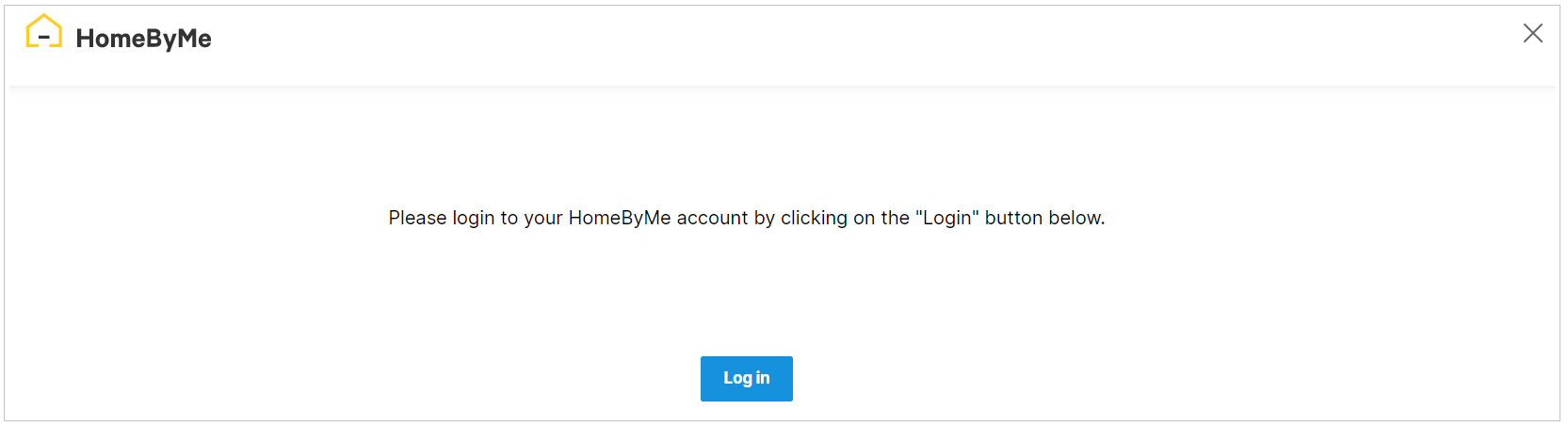
- Click the Log in button.
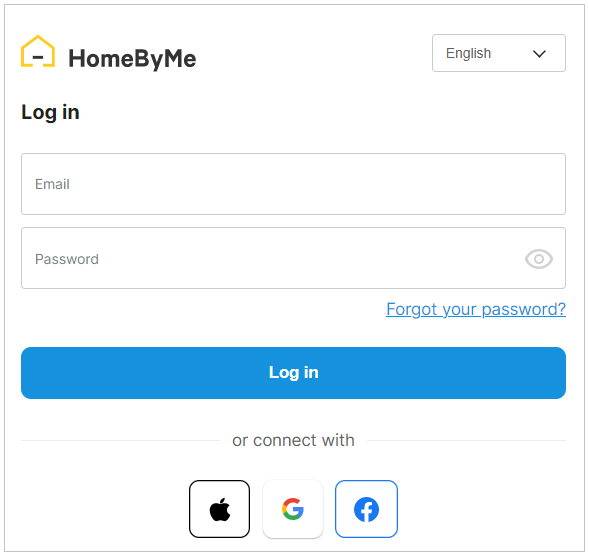
Enter the credentials and click the Log in button, or connect HomeByMe using Facebook/Google/Apple account.
After successful login, the HomeByMe connects and your projects in HomeByMe are displayed.
Case 1. If you have no projects in your HomeByMe account, the window with the message "You have no HomeByMe projects" appears, as shown below:
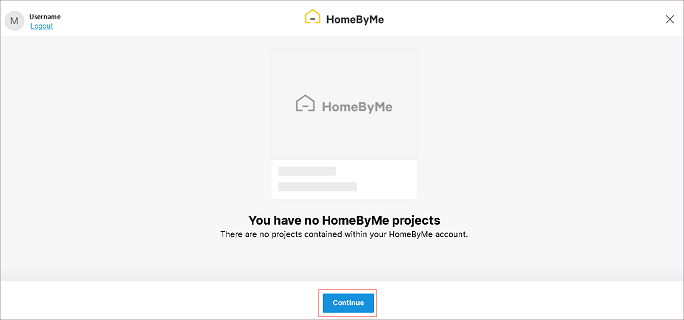
- Click the Close button, you will be redirected to the Home Retailers application.
Case 2. If you have only one project in your HomeByMe account, the project selection step is skipped, and the available project is imported.
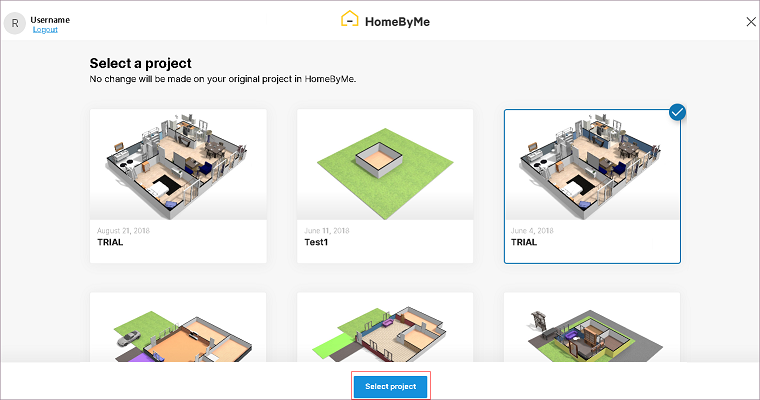
Case 3. If you have multiple projects in your HomeByMe account, select the project and click the Select project button to import it in the Home Retailers application, as shown below:
The integration begins, as shown below:
A copy of the HomeByMe project has been imported.

- If you have multiple floors in HomeByMe project, by default Ground floor is selected.
To change the floor, click Ground floor and select preferred floor.
For more information on levels, refer View Mode Options.
Floor Selection: