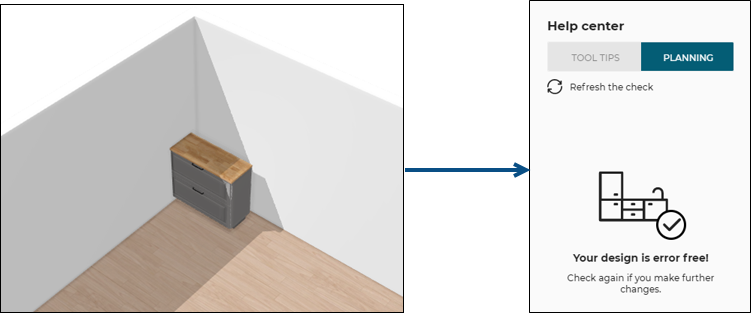
Expired Products

ExpiredProductRule
Highlight and replace expired products.
Notification level: ⚠
| Key | Value |
|---|---|
| ID | ExpiredProductsRule |
| Translation key | expired_products_rule.title expired_products_rule.error_message |
Behavior
The Home planner handles natively expired products with some basic behaviors. You can find more details in the expired products documentation 🔗.
This applicative rule adds two additional features to help users deal with expired products in their projects. These two actions are available in the help center:
- highlight the expired products in the scene
- replace the expired products by available products
Every time the BOM is computed, the expired products are listed based on their start-date and end-date. This list is then used by the applicative rule to determine the actions allowed for the user.
📌 Note: highlight is not available for expired coverings. In this case only replace button will be visible.
📌 Note: if the rule is not implemented, nothing of the following documentation applies in the planner, but users still benefit from the native support of expired products (see above link).
Trigger Conditions
The rule is triggered if there is at least one "eligible" expired product in the BOM. Below is the list of eligible expired products:
- Top product (Also referred as root product in this documentation)
- For generic products, the rule verifies both the generic and the resolved product
Everything else is non-eligible, meaning that they will not result in a card in the Help Center if they are expired. Notably:
- Additional BOM product : products that are added in the BOM by a BOM applicative rule
Highlight workflow
Depending on the current step of the application and the product type, the action for highlighting the expired product changes.
In 3D view
| Product type | Highlight action |
|---|---|
| Top product | show in 3D : highlights the product(s) with a red 3D bounding box |
In 2D view
| Product type | Highlight action |
|---|---|
| Top product | show in 2D : highlights the product(s) with a red 2D bounding box |
Replace workflow
The action for replacing expired products also depends on the current step of the application and the product type. Below is a chart that shows the replace action in colored rectangles (green rectangle for the main application). It also shows how the replace mechanism is handled depending on the rule overloads (see the Overload Parameter section below).
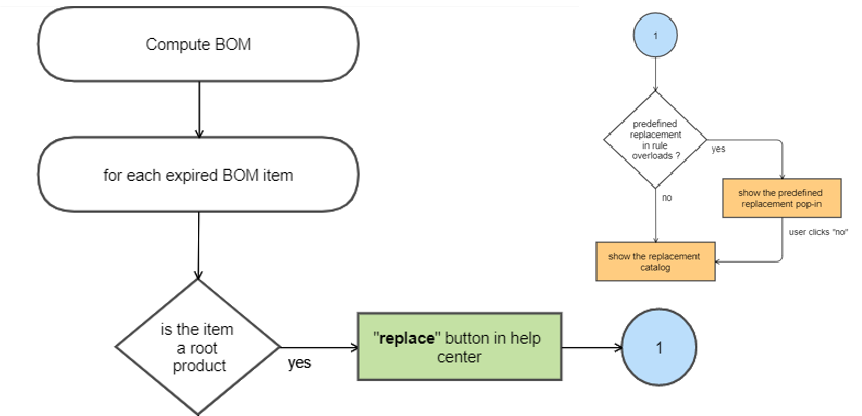
📌 Note: In this chart,
root productmeans a top-product.
Overload Parameter
| Key name | Type | Default value | Description |
|---|---|---|---|
replacements | object | – | A mapping table with a replacement product ID for each expired product ID. Mandatory key but can be empty. |
📌 Note: the rule overloads are used to define what we call predefined replacements, but these are optional. Implementing the rule with an empty replacement list still offers highlight and replace mecanisms as described above. Predefined replacements are used if you want to suggest a particular replacement for an expired product, and that will display a specific pop-in in the planner.
For example: In the sample code below, 9555 is the expired product and 9194 is the replacement product.
{
	"replacements": {
		"9555":"9194",
		"9856":"9217",
		"13461":"10370"
	}
}
Example use case
The following examples show how to deal with expired products in the application.
Expired top product
For this example, the cabinet CAB_800 is expired and the user's Home contains 3 occurences of this cabinet.
- Open the Help center and check for expired products.
- Expired products are grouped by ID so there is only one card for all the expired CAB_800.
- Click Show in 3D on the card.
- The 3 CAB_800 are highlighted in red for a few seconds in the 3D scene.
- Click Replace on the card.
- If a predefined replacement is setup, a specific pop-in is displayed. Otherwise, a regular replace catalog is open.
Illustration
A cabinet in the design is expired, the business rule is triggered and guides the user through the actions required to replace it with another cabinet.
When available, a Show in 3D action can be used to highlight the product that is expired.
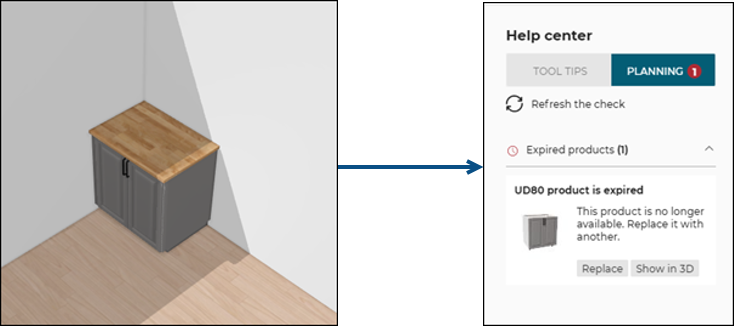
When clicking Replace, and if the rule overloads contain a replacement for the expired product, a pop-in displays a suggestion to replace it with a new one.
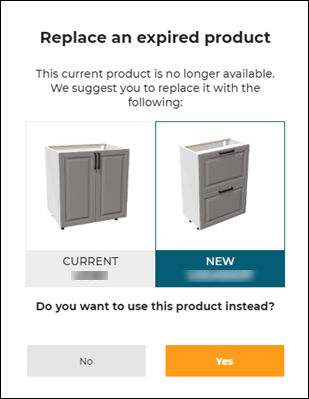
After replacing an expired product with an available one, the rule no longer triggers.