Application Distribution Parameters - Kitchen Configurator
Each application distribution must define its own settings in a JSON formatted object. This documentation describes the supported settings of the Kitchen Configurator application that should be provided for any application distribution linked to the Kitchen Configurator application.
You can find here 🔗 a complete JSON sample example of the Kitchen Configurator application distribution settings.
❗ The JSON object cannot contain any comment.
Supported settings
| For... | See... |
|---|---|
| Language, Units and Currency | locales, currencies |
| Project | defaultWallMaterial, defaultFloorMaterial, defaultStyle, insertStyleParameters |
| Pricing | priceTopAssembly, assemblyCatalogPrice, linearPrecision, coefficient,externalPrice, finance, hide |
| Widgets | productSheet, ecoFee, shareProject, needMapping |
| Catalog | catalogEntries |
| Panel options | editPanelStructure, backPlinthOption, hideEditPanelParameters |
| Search | sortLocale, sortStringFilter, sortNumericFilter, aggregationParameters |
| Templates settings | templateTags, nbMaxResultPerTemplate, nbMaxResultPerGroup |
| Feature | additionalHelp, applianceInTemplate, cabinetEditor, productDetails, magicFurnish, annotations,worktopFrontEdge, favorites, shadingOption |
Top structure
The application distribution settings object is defined with the following attributes:
| Attribute | Type | Description |
|---|---|---|
locales | array of objects | A list of supported locales in the application distribution |
currencies | array of objects | A list of supported currencies in the application distribution |
project | object | Application distribution settings related to the projects |
pricing | object | Application distribution settings related to the pricing |
widgets | object | Application distribution settings to enable & configure the default widgets |
catalog | object | Application distribution settings related to the catalog |
panelOption | object | Application distribution settings related to the product panels |
search | object | Application distribution settings related to the search |
feature | object | Application distribution settings to enable & configure different features in the kitchen configurator |
The only mandatory attributes are locales, project.defaultWallMaterial and project.defaultFloorMaterial.
locales
| Status | Type | Default value |
|---|---|---|
| Mandatory | array of locale objects | [] |
This parameter contains the list of supported locales for the Application Distribution. It must contain at least one element.
A locale object is defined as follow:
| Attribute | Type | Mandatory | Description |
|---|---|---|---|
isDefault | boolean | NO | If true, tells the application to use this locale by default. It is possible to launch the planner with a specific locale thanks to the "ln" URL parameter 🔗 |
name | string | YES | A combination of a mandatory and an optional element joined in a string and separated by a "-" (dash). - MANDATORY: 2-letter code of a language, following 🔗 ISO 639-1. - OPTIONAL: 2-letter code of a region / country, following 🔗 ISO 3166-1. Examples: "da-DK" for "Danish-Danemark" or "fr-FR" for "French-France" or "PT-pt" for "Poruguese-Portugal". |
fallback | string | NO | Used for translations only. If a translation key is not found for the given locale, the translation system falls back to this locale instead. If not specified, falls back to English. |
unitSystem | string | YES | Defines which unit system is used in the application. Can be metrics or imperial |
lengthUnit | string | YES | Defines the base unit for length in the application. Can be millimeter, centimeter, decimeter or meter (for unitSystem = metrics) and inch, foot or yard (for uniSystem = imperial) |
lengthPrecision | integer | YES if uniSystem is metrics | The various lengths displayed in the application will be displayed with lengthPrecision decimal digits |
lengthFractionPrecision | integer | YES if uniSystem is imperial | Minimal fraction of lengthUnit. Valid values are: 8, 16 or 32 |
Example 1 – Array of three locales in metrics
{
    "locales":
    [
        {
            "name": "fr-BE",
            "unitSystem": "metrics",
            "lengthUnit": "millimeter",
            "lengthPrecision": 0,
            "fallback": "en"
        },
        {
            "name": "nl-BE",
            "unitSystem": "metrics",
            "lengthUnit": "millimeter",
            "lengthPrecision": 0,
            "fallback": "en"
        },
        {
            "name": "de-DE",
            "unitSystem": "metrics",
            "lengthUnit": "millimeter",
            "lengthPrecision": 0,
            "fallback": "en"
        }
    ]
}
Example 2 – Array of two locales in imperial
{
    "locales":
    [
        {
            "name": "en-US",
            "unitSystem": "imperial",
            "lengthUnit": "foot",
            "lengthPrecision": 0,
            "lengthFractionPrecision": 16,
            "fallback": "en"
        },
        {
            "name": "es-US",
            "unitSystem": "imperial",
            "lengthUnit": "foot",
            "lengthPrecision": 0,
            "lengthFractionPrecision": 16,
            "fallback": "en"
        }
    ]
}
currencies
| Status | Type | Default value |
|---|---|---|
| Optional | array of currency objects | [] |
This parameter contains a list of specific currency configurations for the Application Distribution. Each object in this array is used to configure how a particular currency is configured for its display in the application.
When the application starts, it determines which currency to use (see currency URL param 🔗). If it is in this list of currencies, it uses the associated object to configure the currency display. If the currency is not in the currencies list, it fallsback on the locale-currency configuration (see GET /applications/{id}/currencylocales/{locale} 🔗).
A currency object is defined as follow:
| Attribute | Type | Mandatory | Description |
|---|---|---|---|
currencyCode | string | YES | A 3 letters string following 🔗 ISO 4217 |
currencyName | string | YES | The currency name |
numberSystem | string | YES | "latin" or "arab". Defines which alphabet to use to display the digits |
currencySymbol | string | YES | The symbol to display for the currency |
currencySignRighthand | boolean | YES | Defines if the currency symbol should be on the right side of the price number. true to display the symbol on the right side |
currencySpacing | boolean | YES | Defines if there should be a space between the price number and the currency symbol. true to display a spacing |
decimalSeparator | string | YES | The separator string to separate the decimal digits of the price |
thousandSeparator | string | YES | The separator string to separate the thousand groups |
noDecimalString | string | YES | The string to display when there is no decimal digits |
Example 1 – Array of two currencies
{
    "currencies": [
        {
            "currencyCode": "GBP",
            "currencyName": "British Pound",
            "numberSystem": "latin",
            "currencySymbol": "\u00a3",
            "currencySignRighthand": false,
            "currencySpacing": false,
            "decimalSeparator": ".",
            "thousandSeparator": ",",
            "noDecimalString": ""
        },
        {
            "currencyCode": "EUR",
            "currencyName": "euro",
            "numberSystem": "latin",
            "currencySymbol": "\u20ac",
            "currencySignRighthand": true,
            "currencySpacing": true,
            "decimalSeparator": ",",
            "thousandSeparator": " ",
            "noDecimalString": ""
        }
    ]
}
project
The project attribute groups settings related to project configuration.
defaultWallMaterial
| Status | Type | Default value |
|---|---|---|
| Mandatory | string | null |
Define the wall material that is used by default when the application launches.
For example:
"defaultWallMaterial": "4751",
defaultFloorMaterial
| Status | Type | Default value |
|---|---|---|
| Mandatory | string | null |
Defines the floor material that is used by default when the application launches.
For example:
"defaultFloorMaterial": "4296"
defaultStyle
| Status | Type | Default value |
|---|---|---|
| Optional | object | null |
This object is used to define the default styling in the Kitchen Configurator application. Below is the list of supported attributes for this object.
styleVersion
| Status | Type | Default value |
|---|---|---|
| Mandatory | positive integer | – |
Version in which to read the rest of the object. The current version is 2. Version 0 is deprecated.
linearStyle
| Status | Type | Default value |
|---|---|---|
| Optional | object | {} |
Object containing the linear style. Keys are linear names, values are a single DBID as a string. The only supported keys (case sensitive) for this object are:
- "worktop"
- "plinth"
- "wallPanel"
- "wallEdgeStrip"
- "cornice"
- "decostrip"
furnitureStyle
| Status | Type | Default value |
|---|---|---|
| Optional | object | {} |
Object containing the furniture style of every products in the kitchen configurator. Keys are parameter names (case sensitive), values are arrays of accepted values.
Listed parameters can be of any valid type (boolean, integer, product, etc.), not necessarily of product type.
Note: Putting parameter style in this object is similar to putting it in both
floorStyleandwallStyle.
floorStyle
| Status | Type | Default value |
|---|---|---|
| Optional | object | {} |
Object containing the furniture style of products touching the floor in the kitchen configurator. Keys are parameter names (case sensitive), values are arrays of accepted values.
Listed parameters can be of any valid type (boolean, integer, product, etc.), not necessarily of product type.
wallStyle
| Status | Type | Default value |
|---|---|---|
| Optional | object | {} |
Object containing the furniture style of products not touching the floor in the kitchen configurator. Keys are parameter names (case sensitive), values are arrays of accepted values.
Listed parameters can be of any valid type (boolean, integer, product, etc.), not necessarily of product type.
ignoredParameters
| Status | Type | Default value |
|---|---|---|
| Optional | array of string | [] |
📌 Supported from styleVersion 2.
Array of blacklisted parameter names. These parameters are never added to the global style when planning your kitchen.
For example:
   "defaultStyle": {
      "styleVersion": 2,
      "linearStyle": {
         "plinth": "13950",
         "cornice": "14178",
         "worktop": "14130",
         "decostrip": "14146",
         "wallPanel": "18510",
         "wallEdgeStrip": "14173"
      },
      "furnitureStyle": {
         "handle": [ "13776" ],
         "drawerFront": [ "13700" ],
         "front": [ "13855" ]
      },
      "floorStyle": {
         "front": [ "13855" , "13902" ]
      },
      "wallStyle": {
         "front": [ "13699" , "16059" ]
      },
      "ignoredParameters": [ "cooktop", "leftSidePanel", "rightSidePanel" ]
   },
insertStyleParameters
| Status | Type | Default value |
|---|---|---|
| Optional | array of string | [] |
Array of parameters to check upon inserted products. Any inserted product that has one of these parameters triggers a style check. If the array is empty or if the user adds a product with no parameter from this list, no style check is performed.
During a style check the kitchen configurator verifies that the current style can be fully applied. If any style parameter has no valid value on the inserted product, a pop-in is displayed to the user alerting that the current style cannot be fully applied.
Note: In any case, the current style is applied to any inserted product. The
insertStyleParameterssetting only controls in what cases to display a pop-in to the user.
For example:
"insertStyleParameters": [
   "front",
   "drawerFront"
]
pricing
The pricing attribute groups settings related to pricing configuration.
priceTopAssembly
| Status | Type | Default value |
|---|---|---|
| Optional | boolean | false |
Indicates whether the assembly product prices should include the price of the top assembly or not. This only affects assembly products (i.e. BMA products); Single component products (i.e. BM3 products) are always priced with their own price.
assemblyCatalogPrice
| Status | Type | Default value |
|---|---|---|
| Optional | boolean | true |
Set to false if you want to hide the product prices that are displayed in the different catalog browsers in the planner. It only affects assembly products (i.e. BMA products). Even if set to true, the price of the products that are not assemblies (i.e. single component products corresponding to BM3 files) will be displayed in the catalog browser (worktops, accessories, etc.).
linearPrecision
| Status | Type | Default value |
|---|---|---|
| Optional | positive integer | 3 |
Defines the decimal precision for linear lengths in the BOM. Depending on the chosen pricing method, the 'linear' or 'square' value will be expressed in m (linearMeter), ft (linearFeet), m² (squareMeter) or ft² (squareFeet).
For example, if linearPrecision is set to "3" and a product is priced in linearMeter, the BOM linear attribute will be: 1.355.
In other terms, it will be precise to the millimeter (meter * 10 power to -3).
Note:
- The
linearPrecisionparameter is only used for the four pricing methods listed above.- A value rounding will be necessary if you set a number lower than "3". The
roundingMethodattribute is used to control-how to perform this rounding.
coefficient
| Status | Type | Default value |
|---|---|---|
| Optional | positive integer | 1 |
Defines a coefficient that is multiplied to every prices of the products contained in the user's project. For exemple, it allows for a particular app-distribution to have prices down by 10% (in this case, coefficient would need to be 0.9). Note that, only products available in the project are affected, the products price displayed in the catalog are not changed and the coefficient is not taken into account. We recommend to hide the price displays on the product card in the catalog. See below assemblyCatalogPrice parameters in this page.
externalPrice
| Status | Type | Default value |
|---|---|---|
| Optional | boolean | false |
Set to true if you want to use an external module to compute the kitchen configurator price. By choosing this option, after each BOM computation, the configurator sends it via an iframe message 🔗 and waits for a reply that must contain the kitchen configurator price to display in the UI.
Note: this option is not compatible with the
financesetting below. Using both will result in undefined behaviors in the planner.
finance
| Status | Type | Default value |
|---|---|---|
| Optional | object | { durations: [], defaultDuration: null, interestPercentage: null, depositPercentage: null } |
The finance object is used to configure the monthly price of kitchen configurator projects. If you don't need this feature, you can omit this object as it is optional. If you want to enable this option, you can provide the keys / pairs below.
durations
| Status | Type | Default value |
|---|---|---|
| Optional | array of integer | [] |
Indicates the list of accepted loan durations, expressed in months. Values are integer comprised between 2 and 120 (10 years). Values outside this range will be clamped (i.e. below 2 it will be 2 and over 120 it will be 120). Note: if this array is empty, the entire finance feature will not be active.
defaultDuration
| Status | Type | Default value |
|---|---|---|
| Optional | integer | null |
If not provided, the first value of the durations array is used.
Defines the default duration of the loan (the first proposed duration). If given, it must be a value comprised in the durations array.
interestPercentage
| Status | Type | Default value |
|---|---|---|
| Optional | integer | null |
Defines the interest rate of the loan (APR) in percentage. It must be between 0.1 and 100 and the value is clamped if outside this range.
depositPercentage
| Status | Type | Default value |
|---|---|---|
| Optional | integer | null |
Defines the deposit percentage of the loan (i.e. the percentage of the total price that will have to be payed directly during the sale). It must be between 0 and 100 and the value is clamped if outside this range.
For Example:
"finance":
{
   "durations": [ 3, 6, 12, 36, 48 ],
   "defaultDuration": 6,
   "interestPercentage": 2.6,
   "depositPercentage": 10.5
},
secondaryCurrency
| Status | Type | Default value |
|---|---|---|
| Optional | string | "" |
Defines a secondary currency to include in the BOM computation. The expected value for this parameter is the currency code (3 characters) of your secondary currency. If this setting corresponds to a valid currency, a second price value is appended in the BOM for each product that is priced in this secondary currency. The total project price is also computed in both currencies.
Note: you also have to set the BOM version to 11 or above. See the BOM documentation.
hide
| Status | Type | Default value |
|---|---|---|
| Optional | boolean | false |
Defines whether the total project price is displayed or not in the configurator.
widgets
The widgets attribute is used to configure the use of default widgets in the configurator. It contains a key for each supported widget in the configurator.
productSheet
| Status | Type | Default value |
|---|---|---|
| Optional | boolean or object | false |
Defines whether the Product Sheet 🔗 default widget is used in the configurator for displaying product information.
To disable the widget, set productSheet to false. To enable it, set it as true.
To display the dimensions of the product, set dimensions to true.
To display the price of the product, set price to true. To enable/disable it, set it as an object with the following keys/values:
dimensions
| Status | Type | Default value |
|---|---|---|
| Optional | boolean | true |
Defines if the 'dimensions' of the product are displayed or not.
Example - where the dimensions and price are disabled:
"productSheet": {
   "dimensions": false
}
ecoFee
| Status | Type | Default value |
|---|---|---|
| Optional | boolean | false |
Defines whether the ecofee default widget is used in the configurator to display ecofee information to the user.
To disable the widget, set ecoFee to false. To enable it, set it as true.
Note: for more information about the
ecoFee widget, please refer to its documentation in kitchen app documentation.
needMapping
| Status | Type | Default value |
|---|---|---|
| Optional | boolean | false |
Defines whether the needMapping default widget is used in the magic furnish feature, instead of the client supplied need mapping.
To disable completely the need mapping step, see feature.magicFurnish.needMappingStep.
If needMapping is set to false, the client supplied need mapping is used.
If needMapping is set to true, the need mapping default widget is used.
Note: for using need mapping default widget and more information about the
Need mapping widget, please refer to its documentation in kitchen app documentation.
catalog
The catalog attribute groups settings related to catalog configuration.
catalogEntries
This object is used to configure the different catalog entries displayed in the kitchen configurator.
The navigation structure in the kitchen configurator is the following:
- The first level of definition is the catalog entry. Only this level has an icon.
- The second level is the category. It is displayed as menu header in the kitchen configurator.
- The third level is the sub-level of the menu, i.e. the menu item.
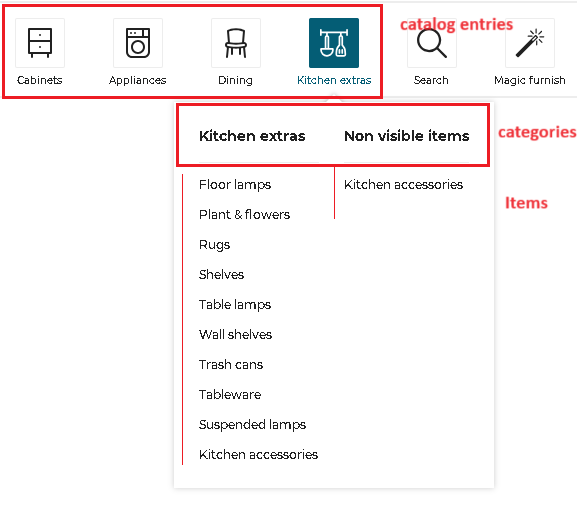
Note: Some kitchen configurator entries are displayed at the same level as catalog entries: "Magic furnish" and "search" are not catalog entries.
detailedDesign (context)
	|	|
	|__ catalogEntry (first level, with picto) e.g.`Cabinets`
	|	|
	|	|__ item (second level) e.g. `Base cabinets`
	|	|
	|	|__ item (second level) e.g. `Wall cabinets`
	|
	|__ catalogEntry (first level, with picto) e.g. `Kitchen extras`
	|	|
	|	|__ category (second level) e.g. `Kitchen extras`
	|	|	|
	|	|	|__ item (third level) e.g. `Floor lamps`
	|	|	|
	|	|	|__ item (third level) e.g. `Shelves`
	|	|
	|	|__ category (second level) `Non visible items`
	|	|	|
	|	|	|__ item (third level) e.g. `kitchen accessories`
	|	|
About the Icons
Each catalog entry is illustrated by an icon that you can choose from the predefined list below:
| Picto name | Icon |
|---|---|
| accessories |  |
| appliances |  |
| coverings |  |
| deco |  |
| dining |  |
| doors |  |
| flooring |  |
| front |  |
| furniture-alt |  |
| furniture |  |
| handles |  |
| objects |  |
| openings |  |
| worktop |  |
Top level structure
detailedDesign
| Status | Type | Default value |
|---|---|---|
| Optional | array of catalog-entry objects | [] |
Define all possible catalog entries in the detailed design state of the configurator.
Catalog-entry object structure
This level is the only one that has pictos. A catalog-entry object contains the keys / pairs below.
picto
| Status | Type | Default value |
|---|---|---|
| Mandatory | string | "" |
The name of the SVG picto to use for this catalog entry. Supported values are listed above.
translationKey
| Status | Type | Default value |
|---|---|---|
| Mandatory | string | "" |
The translation key suffix for the catalog entry name. The application builds the full translation key like follows (where {key_suffix} is replaced by the provided translationKey):
for catalog entries in detailedDesign
full key = navigation_catalog.detailed_design_state.{key_suffix}
Note: Though
translationKeycan be any string chosen by the range maintainer, some categories and sub-categories have a specific behaviour in the kitchen configurator, and we use thetranslationKeyto identify them. So for these catalog entries, you must use the exacttranslationKeyas defined in the list below to benefit from the associated behaviours in the kitchen configurator:
- For "Cabinets" category, the
translationKeymust be "cabinets". If not, the associated tooltip in the Help Center will not work.- For "Appliances" category, the
translationKeymust be "appliances". If not, the associated tooltip in the Help Center will not work.
categories
| Status | Type | Default value |
|---|---|---|
| Mandatory | array of category objects | [] |
Define in this array all the categories to display in the catalog entry.
isAccessory
| Status | Type | Default value |
|---|---|---|
| Optional | boolean | false |
Only used for catalog entries in detailedDesign. If set as true, the categories of the catalog entry are considered as "accessories".
Category object structure
A category object contains the keys / pairs below.
translationKey
| Status | Type | Default value |
|---|---|---|
| Mandatory | string | "" |
Translation key. It follows the same logic as the translationKey attribute of catalog-entry entries as defined above.
categories
| Status | Type | Default value |
|---|---|---|
| Mandatory | array of sub-category objects | [] |
Define in this array all the sub-categories to display in the category.
isNonVisibleItem
| Status | Type | Default value |
|---|---|---|
| Optional | boolean | false |
If set as true, the sub-categories associated to that category are considered as non-visible items. Products added via these catalogs have no 3D representation and the catalog is displayed differently to allow users to easily add and remove such items from their projects.
Sub-category object structure
The last level is the second level of navigation, i.e. the items in the menu.
translationKey
| Status | Type | Default value |
|---|---|---|
| Mandatory | string | "" |
Translation key. It follows the same logic as the translationKey attribute of catalog-entry entries as defined above.
closedTags
| Status | Type | Default value |
|---|---|---|
| Mandatory | array of number | [] |
List of closed tag IDs that are searched when the user clicks on that sub-category. Search results are any product that has either of these closed tags.
Note: when clicking on a category (and not a sub-category), the kitchen configurator searches for the all the closed tags of its sub-categories.
freeTags
| Status | Type | Default value |
|---|---|---|
| Mandatory | array of string | [] |
List of free tag IDs that are searched when the user clicks on that sub-category. Search results are any product that has either of these free tags.
Note: when clicking on a category (and not a sub-category), the kitchen configurator searches for the all the free tags of its sub-categories.
productRank
| Status | Type | Default value |
|---|---|---|
| Optional | boolean | false |
Defines if the searchScore must be used when sorting results of the search.
Complete Example
"detailedDesign": [
   {
      "picto": "appliances",
      "categories": [
         {
            "categories": [
               {
                  "freeTags": [],
                  "closedTags": [94],
                  "productRank": true,
                  "translationKey": "cooktops"
               },
               {
                  "freeTags": [],
                  "closedTags": [235],
                  "productRank": true,
                  "translationKey": "dishwasher"
               },
               {
                  "freeTags": [],
                  "closedTags": [224],
                  "productRank": true,
                  "translationKey": "washer"
               },
               {
                  "freeTags": [],
                  "closedTags": [188],
                  "productRank": true,
                  "translationKey": "fridge"
               },
               {
                  "freeTags": [],
                  "closedTags": [154],
                  "productRank": true,
                  "translationKey": "hoods"
               },
               {
                  "freeTags": [],
                  "closedTags": [267],
                  "productRank": true,
                  "translationKey": "ovens"
               },
               {
                  "freeTags": [],
                  "closedTags": [269],
                  "productRank": true,
                  "translationKey": "sinks"
               }
            ],
            "translationKey": "appliances"
         }
      ],
      "translationKey": "appliances"
   },
]
The above example produces the following catalog entries:
"Appliances" catalog

panelOption
The panelOption attribute groups settings related to product panel configuration.
editPanelStructure
This object defines how to display the properties of a product depending on the context (the first definition level of the object) and the type.
The data structure of the editPanelStructure object is the following.
editPanelStructure
|____ DetailedDesignState (array)
|           |__ types (array of strings)
|           |__ presentation
|           |     |__ parameter 1
|           |     |      |__ parameter
|           |     |__ parameter 2
|           |     |      |__ parameter 1
|           |     |      |__ parameter2
|           |     |__ parameter 3
|           |     |      |__ parameter 1
|           |     |      |__ parameter 2
|           |     |      |__ parameter 3
|           |     |__ parameter 4
|           |     |__ parameter 5
|____ CabinetComposer (array)
|           |__ types [536]
|           |__ presentation
|           |     |__ parameter 1
|           |     |      |__ parameter
|           |     |__ parameter 2
Top level structure
The editPanelStructure object can contain the keys / pairs below.
DetailedDesignState
| Status | Type | Default value |
|---|---|---|
| Optional | array of panel-option objects | [] |
Use types to define the way the properties will be displayed in the kitchen application, in the context of a detailed design.
CabinetComposer
| Status | Type | Default value |
|---|---|---|
| Optional | array of panel-option objects | [] |
Use types to define the way the properties will be displayed in the kitchen application, in the context of the cabinet composer.
Panel-option object structure
types
| Status | Type | Default value |
|---|---|---|
| Mandatory | array of number | [] |
An array of closed tag IDs. If empty, it means that this presentation is for all type of products (closed tag type) that do not have a more specific presentation defined. If not empty, this presentation represents all products matching one of the closed tags in the list.
presentation
| Status | Type | Default value |
|---|---|---|
| Mandatory | object | {} |
Define the list of parameters in the right order.
The presentation object contains a single mandatory key: parameters which is itself an array of panel-parameter objects.
Panel-parameter object structure
Object defining a parameter and its possible sub-options. The edit panel in the kitchen configurator uses the order in which those panel-parameter objects are defined. Parameters not defined in the application distribution settings are displayed at the end of the edit panel.
id
| Status | Type | Default value |
|---|---|---|
| Mandatory | string | "" |
A valid parameter name.
parameters
| Status | Type | Default value |
|---|---|---|
| Mandatory | array of panel-parameter objects | [] |
An array panel-parameter objects. Putting parameters inside other parameters has the effect to add an "options" button on the top parameter. This button displays an option panel where sub-parameters can be edited.
Note: it is advised not to add more than 1 sub-parameter level to avoid confusion for the user.
Example 1
{
   "DetailedDesignState": [
      {
         "types": [],
         "presentation": {
            "parameters": [
               {
                  "id": "front",
                  "parameters": [
                     { "id": "side" }
                  ]
               },
               { "id": "drawerFront" }
            ]
         }
      }
   ]
}
In this example, there is a single presentation that works for any type of product. It defines two parameters that we want to show first (all other parameters are shown below those two).
- The first one is "front" and it has the sub-parameter "side"
- The second one is "drawerFront".
Example 2
{
   "DetailedDesignState": [
      {
         "types": [],
         "presentation": {
            "parameters": [
               { "id": "front" },
               { "id": "drawerFront" }
            ]
         }
      },
      {
         "types": [258],
         "presentation": {
            "parameters": [
               { "id": "drawerFront" },
               { "id": "front" }
            ]
         }
      }
   ]
}
In this example there are two presentations each defining 2 parameters.
- For all products with close tag 258, the second presentation applies in the kitchen configurator : the edit panel show parameter "drawerFront", then "front" and then all the others.
- For all other products, the first presentation applies in the kitchen configurator: the edit panel show parameter "front", then "drawerFront" and then all the others.
backPlinthOption
| Status | Type | Default value |
|---|---|---|
| Optional | boolean | true |
The visibility of "back plinth" option under the plinth options is controlled by this parameter. By setting this option to false, the user has no possibility to disable the back plinth in the kitchen configurator UI.
Note: the back plinth feature cannot be disabled completely. This setting only controls wheteher the user has access to a toggle in the UI to enable/disable the back plinth.
propertiesPanelOptions new categories structure
A categories array is available to group presentations under defaultState. Each entry in categories contains a translationKey and a category array; each element of category is a panel-option object that follows the types + presentation format described below. The added level provides parameter categorization only — the types logic is unchanged: panel-option objects target products using a types array of closedTags, and presentation.parameters retains the same behavior.
The following structure applies under either defaultState:
{
   "defaultState": [
      {
         "categories": [
            {
               "category": [ /* array of panel-option objects */ ],
               "translationKey": "..."
            }
         ]
      }
   ]
}
This structure groups related presentations (for example style, linears) and keeps the edit-panel configuration organized by logical sections.
Example 3
"DefaultState": [
    {
        "categories": [
            {
                "category": [
                    {
                        "types": [],
                        "presentation": {
                            "parameters": [
                                {
                                    "id": "leg",
                                    "parameters": [
                                        {
                                            "id": "legHeight"
                                        }
                                    ]
                                },
                                {
                                    "id": "oven"
                                },
                                {
                                    "id": "sink",
                                    "parameters": [
                                        {
                                            "id": "sinkXOffset"
                                        },
                                        {
                                            "id": "sinkYOffset"
                                        },
                                        {
                                            "id": "sinkMounting"
                                        }
                                    ]
                                },
                                {
                                    "id": "front",
                                    "parameters": [
                                        {
                                            "id": "side"
                                        },
                                        {
                                            "id": "doorOrientation"
                                        }
                                    ]
                                },
                                {
                                    "id": "faucet",
                                    "parameters": [
                                        {
                                            "id": "faucetXOffset"
                                        },
                                        {
                                            "id": "faucetYOffset"
                                        }
                                    ]
                                },
                                {
                                    "id": "handle",
                                    "parameters": [
                                        {
                                            "id": "handleLayout"
                                        },
                                        {
                                            "id": "handleOrientation"
                                        }
                                    ]
                                }
                            ]
                        }
                    },
                    {
                        "types": [
                            554
                        ],
                        "presentation": {
                            "parameters": [
                                {
                                    "id": "leg"
                                },
                                {
                                    "id": "angle"
                                },
                                {
                                    "id": "leftDepth"
                                }
                            ]
                        }
                    }
                ],
                "translationKey": "style"
            },
            {
                "category": [
                    {
                        "types": [],
                        "presentation": {
                            "parameters": [
                                {
                                    "id": "worktopLight"
                                },
                                {
                                    "id": "riserOption",
                                    "parameters": [
                                        {
                                            "id": "leftCorniceBack"
                                        },
                                        {
                                            "id": "rightCorniceBack"
                                        }
                                    ]
                                }
                            ]
                        }
                    },
                    {
                        "types": [
                            554
                        ],
                        "presentation": {
                            "parameters": [
                                {
                                    "id": "leftDepth"
                                },
                                {
                                    "id": "leftWidth"
                                },
                                {
                                    "id": "rightDepth"
                                },
                                {
                                    "id": "rightWidth"
                                }
                            ]
                        }
                    }
                ],
                "translationKey": "linears"
            }
        ]
    }
]
The following exemple allows us to display this structure of edit panel: "edit panel
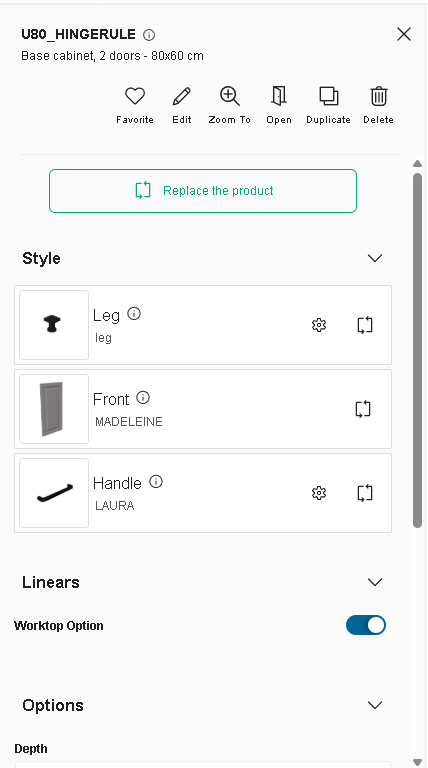
hideEditPanelParameters
This object defines, which properties to be excluded from properties panel.
The data structure of the hideEditPanelParameters object is the following.
hideEditPanelParameters
|____ backCoverPanel
|____ leftCoverPanel
|____ rightCoverPanel
search
The search attribute groups settings related to the search configuration.
sortLocale
| Status | Type | Default value |
|---|---|---|
| Optional | string | "raw" |
In the catalog of a product, some retailers rank the products according to their requirements. The sortLocale parameter is used to enable/disable the product ranks.
See Product Rank for catalog search 🔗 for detailed information on product ranking.
sortLocale defines the sorted locale used for sorting lexicographical order. If not specified, the lexicographical order uses Unicode characters for sorting. Therefore the order is the same in any language context.
Possible values are:
- "locale": The kitchen configurator uses the current locale from its context. For example, if the current kitchen configurator locale is "ru-RU", setting the value to "locale" means to use the Russian alphabet to sort. If the locale is "de-DE", it uses the German alphabet to sort.
- A given locale that is combination of a mandatory and an optional element:
- MANDATORY: 2-letter code of a language, following 🔗 ISO 639-1.
- OPTIONAL: 2-letter code of a region / country, following 🔗 ISO 3166-1.
❗ Currently, "sv-SE" is the only locale supported as "given locale" value.
sortStringFilter
| Status | Type | Default value |
|---|---|---|
| Optional | string | "desc" |
sortStringFilter defines the sorting order of the filters in the Catalog Browser. If the value of the sortStringFilter is asc it will be sorted in alphabetical order. And If the value is desc, it will be sorted in reverse alphabetical order.
The default value for the key is desc. If no value is provided for the key, by default the filter will be sorted in the reverse alphabetical order.
{
   "sortStringFilter": "desc",
}
sortNumericFilter
| Status | Type | Default value |
|---|---|---|
| Optional | string | "desc" |
sortNumericFilter defines the sorting order of the filters in the Catalog Browser. If the value of the sortNumericFilter is asc it will be sorted in ascending order. And If the value is desc, it will be sorted in descending order.
The default value for the key is desc. If no value is provided for the key, by default the filter will be sorted in the descending order.
{
   "sortNumericFilter": "desc"
}
aggregationParameters
| Status | Type | Default value |
|---|---|---|
| Optional | array of string | [] |
List of all parameter IDs used by the application as catalog filters.
➡️ See the Searchable Parameters 🔗 for a further explanation of how to set the parameters.
{
   "aggregationParameters": [
      "commercialDepth",
      "commercialWidth",
      "function",
      "worktopType",
      "worktopThickness",
      "worktopMaterial",
      "commercialMaterial"
   ],
}
templateSettings
The templateSettings attribute groups settings used to configure the default template settings to use in the magic furnish feature.
templateTags
| Status | Type | Default value |
|---|---|---|
| Optional | array of objects | [] |
Used to set up template filters. It defines groups of required and excluded tags to filter templates that the application will compute. To fit in a group, a template's tags must contain all tags defined in required array and must not contain any tags defined in excluded array. Each group will be computed in the same order as they are defined in the message and solutions are displayed as the same order.
Note: see more information in the corresponding Kitchen documentation.
nbMaxResultPerTemplate
| Status | Type | Default value |
|---|---|---|
| Optional | number | 1 |
Defines the maximum number of solution displayed for a given template.
nbMaxResultPerGroup
| Status | Type | Default value |
|---|---|---|
| Optional | number | 5 |
Defines the maximum number of solution displayed for a given group of tags.
feature
The feature attribute groups settings used to enable/disable specific features of the kitchen configurator.
2dPlans
| Status | Type | Default value |
|---|---|---|
| Optional | object or "false" | see below |
Defines whether 2D plans are accessible to the user in the Design("View image") and Summary step, and describes the 2D Plans configuration, or the "false" value to deactivate the option.
The configuration format is as follows:
| Key | Type | Value/Template | Description |
|---|---|---|---|
| content | object | versionsaveWithProjectconfigs | version: Positive integer(>=0). saveWithProject: 0 or 1, save with current project. (default value: 0)configs: a list of configuration objects |
Possible parameters for a configuration:
| Name | Mandatory | Type | Possible Values | Description |
|---|---|---|---|---|
typePlan | yes | string | "Top" "Face" "TopGround" "TopWall" "Worktop" "WallPanel" "WallEdgeStrip" | the type of plan to compute |
showExteriors | – | num | 0 or 1 | draws the exteriors. (default value: 1) |
showFurniture | – | num | 0 or 1 | draws the furniture. (default value: 1) |
showFurnitureDimension | – | num | 0 or 1 | draws the furniture dimensions. (default value: 0) |
showDepthDimension | – | num | 0 or 1 | draws the furniture depth dimensions. (default value: 0) |
showCrawlspaceDimension | – | num | 0 or 1 | draws the crawl space dimensions. (default value: 0) |
showWallDimension | – | num | 0 or 1 | draws the wall and bay dimensions. (default value: 0) |
showEquipmentReference | – | num | 0 or 1 | draws equipement references (default value: 1) |
showIslandDimension | – | num | 0 or 1 | draws positioning dimensions on islands. (default value: 1) |
showFullIslandDimension | – | num | 0 or 1 | draws 2 positioning dimensions on islands instead of just one. (default value: 0) |
showNumbering | – | num | 0 or 1 | draws the furniture numbers. (default value: 0) |
showCutouts | – | num | 0 or 1 | draws the cutouts in wortops and wallpanels plans (default value: 1) |
showFronts | – | num | 0 or 1 | draws the front and handles of the cabinets (default value: 1) |
tagsToShow | – | Array<num> | [...] | a list of product tags to show in the 2D Plans |
tagsToHide | – | Array<num> | [...] | a list of product tags to hide in the 2D Plans |
tagsToMeasure | – | Array<num> | [...] | a list of product tags to measure in the 2D Plans |
roomsOnly | – | num | 0 or 1 | draws a plan for each room that contains cabinets (default value: 1) |
resol | – | num | 1 - 1000 | Resolution in PPI. (default value: 300) |
scale | – | num | 0 or 1 | Scale of the plan when printed at the current resol (20 means 1/20 scale) (default value: 20) |
imageWidth | – | num | Width of the 2D plans in pixels | |
imageHeight | – | num | Height of the 2D plans in pixels |
The default value is :
{
    "version": 1,
    "saveWithProject": 0,
    "configs": [
        {
            "typePlan": "Top",
            "showFurnitureDimension": 1,
            "showWallDimension": 1,
            "showEquipmentReference": 1,
            "showNumbering": 1,
            "resol": 150,
            "imageWidth": 1600,
            "imageHeight": 900
        },
        {
            "typePlan": "Face",
            "showFurnitureDimension": 1,
            "showWallDimension": 1,
            "showEquipmentReference": 0,
            "showNumbering": 1,
            "resol": 150,
            "imageWidth": 1600,
            "imageHeight": 900
        },
        {
            "typePlan": "Worktop",
            "showFurnitureDimension": 1,
            "showWallDimension": 1,
            "showEquipmentReference": 1,
            "showNumbering": 1,
            "resol": 150,
            "imageWidth": 1600,
            "imageHeight": 900
        },
        {
            "typePlan": "WallPanel",
            "showFurnitureDimension": 1,
            "showWallDimension": 1,
            "showEquipmentReference": 1,
            "showNumbering": 1,
            "resol": 150,
            "imageWidth": 1600,
            "imageHeight": 900
        },
        {
            "typePlan": "WallEdgeStrip",
            "showFurnitureDimension": 1,
            "showWallDimension": 1,
            "showEquipmentReference": 1,
            "showNumbering": 1,
            "resol": 150,
            "imageWidth": 1600,
            "imageHeight": 900
        }
    ]
}
additionalHelp
| Status | Type | Default value |
|---|---|---|
| Optional | boolean | false |
Defines if the additional help is available for the user in help center.
annotations
| Status | Type | Default value |
|---|---|---|
| Optional | boolean | false |
When set to a boolean it defines whether the annotations feature is available.
If set to an object, annotations feature is available. The configuration object supports the following key/values pairs:
imageUpload
| Status | Type | Default value |
|---|---|---|
| Optional | boolean | true |
The imageUpload sub-attribute controls the avalibility of image section in annotations. By default it will be available.
technicalElements
| Status | Type | Default value |
|---|---|---|
| Optional | boolean | true |
The technicalElements sub-attribute controls the avalibility of technical elements section in annotations. By default it will be available.
applianceInTemplate
| Status | Type | Default value |
|---|---|---|
| Optional | boolean | true |
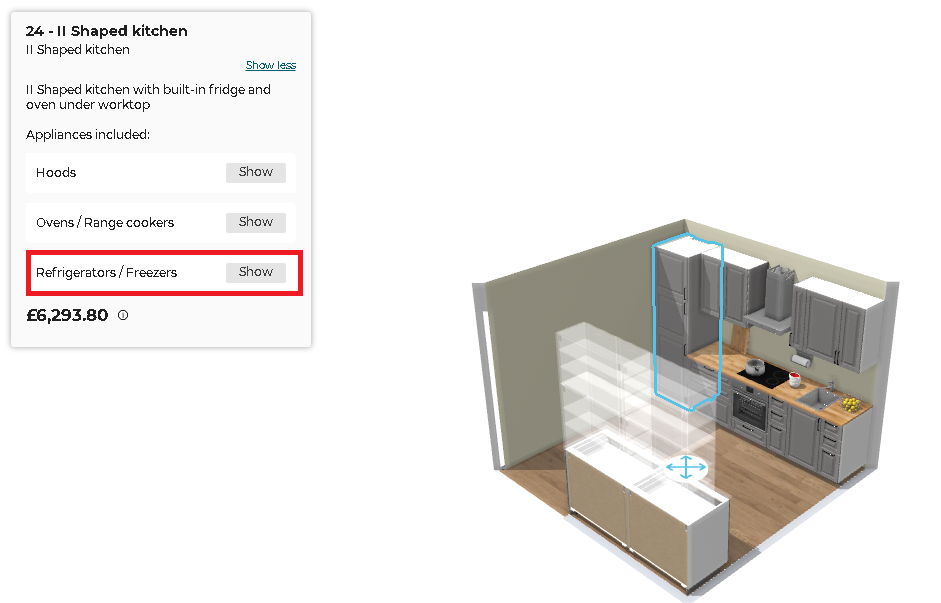
Defines if appliance information is displayed for each proposal in the application Magic furnish second step.
Finding the appliances in templates is controlled by closed tags.
- Cooktop : Closed tag "Cooktops"
- Hood : Closed tag "Hoods"
- Oven : Closed tag "Ovens" or "OvenCabinets"
- Fridge : Closed tag "Refrigerators" or "Freezers"
- Dishwasher : Closed tag "Dishwashers"
- Washer : Closed tag "Washers" or "Dryers"
If
applianceInTemplateis true, after selecting a layout from proposed kitchen templates, the information such as its name, pricing, etc. is displayed on the screen. Clicking on Show more displays the description and the list of appliances included in the layout.
cabinetEditor
| Status | Type | Default value |
|---|---|---|
| Optional | boolean or object | { displayPrice: true } |
Defines the cabinet editor availability. Setting cabinetEditor to false disables completely the cabinet editor.
If set to an object, the cabinet editor is enabled. The configuration object supports the following key/values pairs:
displayPrice
| Status | Type | Default value |
|---|---|---|
| Optional | boolean | true |
Defines whether the cabinet editor should display the product price.
productDetails
| Status | Type | Default value |
|---|---|---|
| Optional | object | { energyLabelParameter: null, dimensionParameter: null } |
Controls additional details to display on products.
It supports the following key/value pairs.
energyLabelParameterOld
| Status | Type | Default value |
|---|---|---|
| Optional | string | null |
energyLabelParameter
| Status | Type | Default value |
|---|---|---|
| Optional | string | null |
The name of the product parameter that represents the energy label (2021 regulation).
dimensionParameter
| Status | Type | Default value |
|---|---|---|
| Optional | string | null |
The name of the product parameter that represents the commercial dimensions.
worktopFrontEdge
| Status | Type | Default value |
|---|---|---|
| Optional | boolean or object | { isPriced: false } |
Controls the worktop front edge feature of the application. Setting worktopFrontEdge to false disables completely the front edge feature (no arrow display in the worktop editor and no possibility to change the front edge position).
If set to an object, the front edge feature is enabled. The configuration object supports the following key/values pairs:
isPriced
| Status | Type | Default value |
|---|---|---|
| Optional | boolean | false |
Defines whether the front edge of the worktop should be priced.
magicfurnish
| Status | Type | Default value |
|---|---|---|
| Optional | boolean or object | false |
Controls whether the "magic furnish" feature is enabled. Magic furnish allows the selection of a wall for the water supply and then suggests automatic proposals.
If set to an object, the magic furnish feature is enabled. The configuration object supports the following key/values pairs:
needMappingStep
| Status | Type | Default value |
|---|---|---|
| Optional | boolean | false |
| Defines whether a need mapping step is added to the magic furnish feature. Note that if activated, the need mapping can be configured with the widgets.needMapping setting. |
favorites
| Status | Type | Default value |
|---|---|---|
| Optional | boolean | false |
Defines if the favorites is available for the user in the configurator.
shadingOption
| Status | Type | Default value |
|---|---|---|
| Optional | boolean | false |
Controls if the shadows are enabled in the application. If enabled, shadows are rendered in the 3D scene.