
Add Products
This section provides detailed information on browsing catalogs and adding the products in the project.
Also, information on searching a product and adding it in the project is provided in this section.
Browse and Add Products
You can add products to your project by browsing them from catalogs.
There are three main catalogs according to products available in them:
Build
Furnish
Decorate
Build
Build catalog contains products useful for designing the building structure of the project.
For example: Doors, Windows, Staircases and Technical Equipment.
Build catalog is divided into five sub-catalogues, according to building product available.
Exterior doors
Example: Front doors, patio doors, and garage doors.
Interior doors
Example: Folding doors, and sliding doors
Windows
Example: Simple windows, double windows, sliding windows, and patio doors.
Staircases
Example: Straight staircases, helical staircases, quarter turn staircases, and double quarter turn staircases.
Technical Equipment
Example: Electricity, heating and cooling, plumbing, and construction.
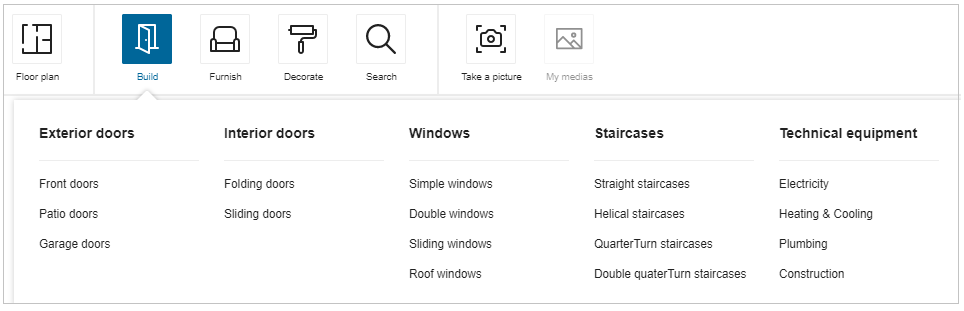
Steps to add a building product to project:
- Click Build.
- Select product type from building products.
Example: Technical equipment >> electricity.
List of products display.
Recommendation:
To view all products from sub-catalog, click sub-catalog product name.
Example: Build > Technical equipment
Click maximize for better display mode, click minimize for previous mode.
- Select product.
Product is added to project.
Furnish
Furnish catalog contains products useful for furnishing the home design in project.
For example: Sofas, Beds, Chairs, Mirrors, Toys and etc.
Furnish catalog is divided into six sub-catalogues, according to room types.
Living room
Example: Sofas, armchairs, poufs, coffee and side tables, living room storage, fireplaces, wood burning stove and accessories, and TV and media furniture.
Bedroom
Example: Beds, nightstands, mirrors, chest of drawers, and wardrobes.
Kitchen
Example: Islands and carts, kitchen set, chairs and stools, appliances, and accessories.
Bathroom
Example: Sinks and faucets, bathtubs and showers, toilets, mirrors, towel holders and dryers, storage, washer and dryers, and accessories.
Dining room Example: Tables, bars and stools, chairs, benches, storage.
Baby and Kids
Example: Beds and cribs, junior chairs, desks, nursery, children’s bedroom furniture, decoration accessories and toys.
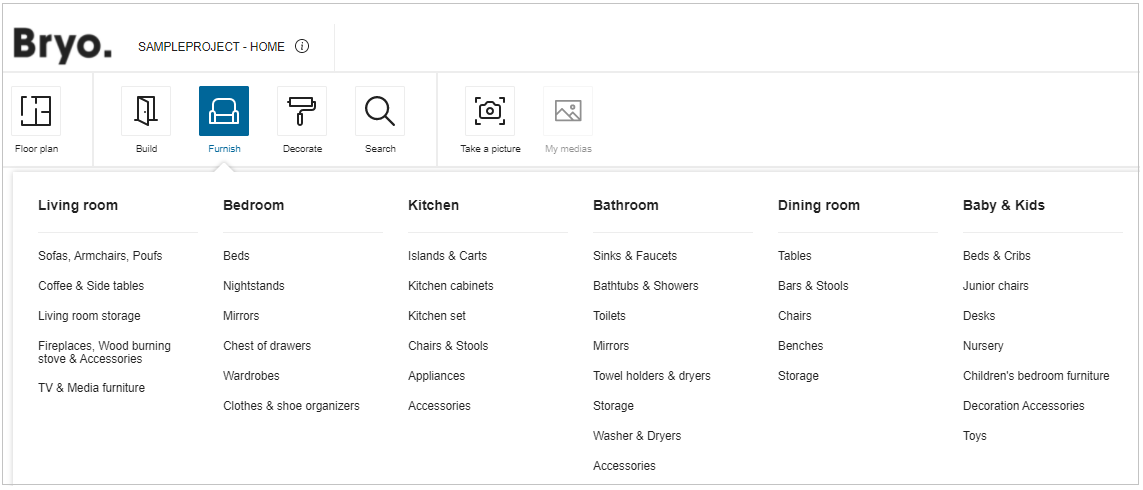
Steps to add a furnishing product to project:
- Click Furnish.
- Select product type from home furnishing products.
Example: Baby and Kids >> Toys.
List of products display.
Recommendation:
To view all products from sub-catalog, click sub-catalog product name.
Example: Furnish > Baby and Kids.
Click maximize for better display mode, click minimize for previous mode.
- Select product. Product is added to project.
Decorate
Decorate catalog contains products useful for decorating the home with colors and accessories in project.
For example: Paint, wallpaper, wall and floor tile, carpet, lighting, plants and flowers, etc.
Decorate catalog is divided into four sub-catalogues, according to decoration type.
Paint and Wallpaper
Example: Paint, wallpaper and wainscot.
Tiles and Stone
Example: Wall and floor tile, mosaic tile, concrete and bricks and natural stone.
Flooring
Example: Hardwood, carpet and exterior.
Decoration Accessories
Example: Lighting, plants and flowers and home decor.
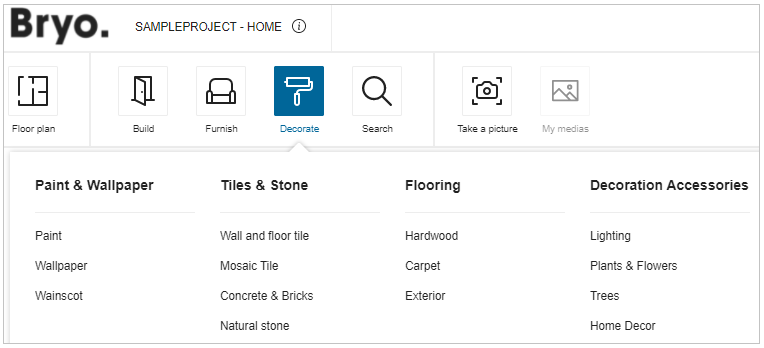
Steps to add a decoration to project:
- Click Decorate.
- Select product type from decoration products.
Example: Flooring >> Hardwood.
List of products display.
Recommendation:
To view all products from sub-catalog, click sub-catalog product name.
Example: Decorate > Flooring.
Click maximize for better display mode, click minimize for previous mode.
- Select product.
- Select wall/floor to add product to it.
Product is added to project. - Click close after applying the product.
Note:
On adding products to project, if there is no enough space for the product, it will be added in front of the avatar.
Search and Add Products
You can search a product in search bar to add to your project.
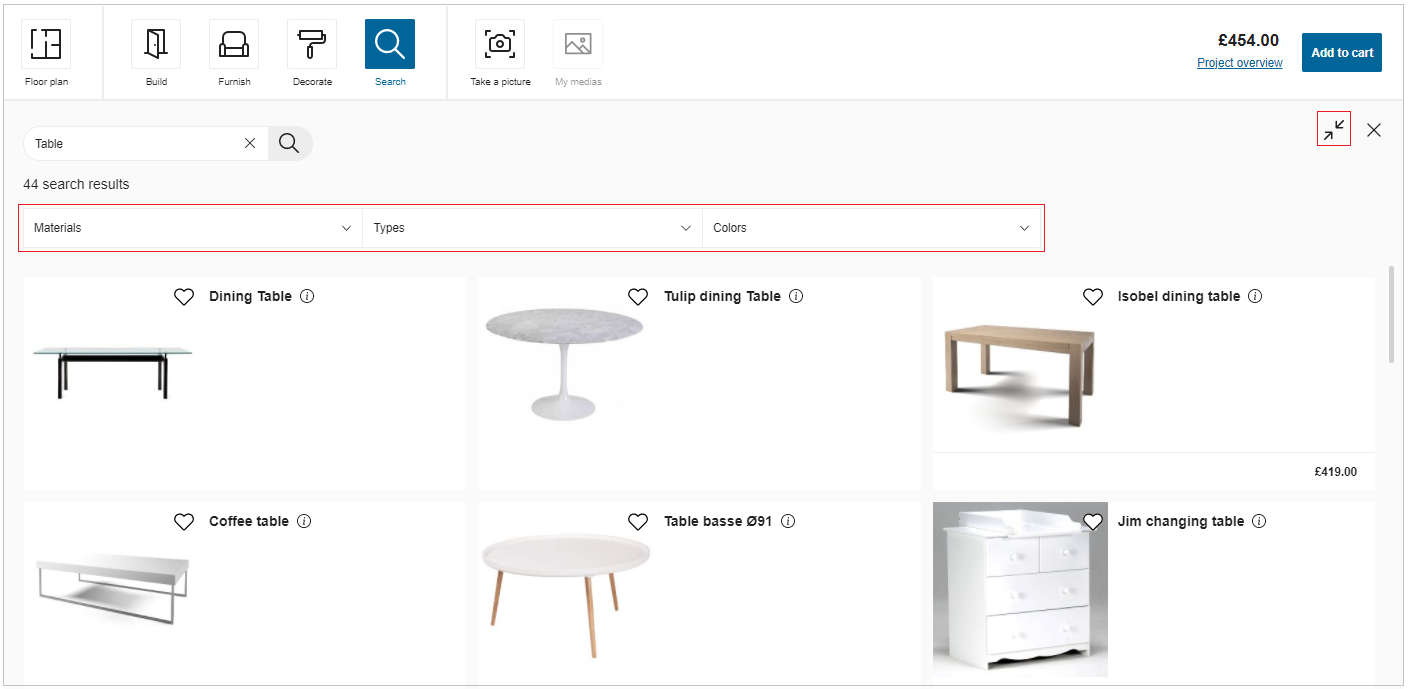
To search for a product, click Search.
You can search a product by its feature (type/reference/color/material, etc.).
- Enter the product feature.
- Click search.
List of products display. Click maximize for better display mode, click minimize for previous mode. - Filter products for certain type of products to display.
- Select product to add to project.
Note:
On adding products to project, if there is no enough space for the product, it will be added in front of the person placer.