
Configure Products
This section provides detailed product information, alongwith steps on editing a product with the available edit options.
Product Information
Information icon beside the name of the product provides product information.
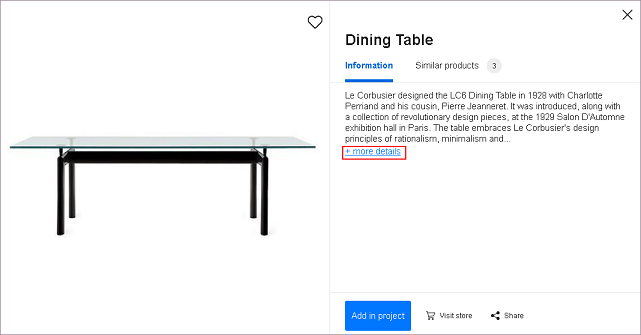
Click information, product information with its price displays.
Click more details/less details for full/half product detail.
Click Similar products section for more similar products.
Click Add in project to add product to project.
Click Visit store for more information on product.
Click Share to share this product.
Select sharing option or click Cancel.
Click close to go back.
Product Edit Option
These options are quick edit options of product.
Note:
Edit options differ with type of product. Only editable features are displayed in edit column.
Select product.
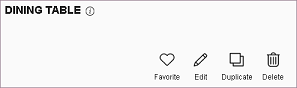
Basic edit options are available.
Split
Click Split to split the wall/room separator in half.
Only available for wall/room separator product.
Favorite
Click Favorite to add the product to favorite list.
Only available for catalog product.
Duplicate
Click Duplicate to add similar product to project.
Delete
Click Delete to delete the product.
Edit
Click Edit to view more edit options.
Edit options consist of modifying product in respect to dimensions, positions, materials, colors, additional features or replacing entire product.
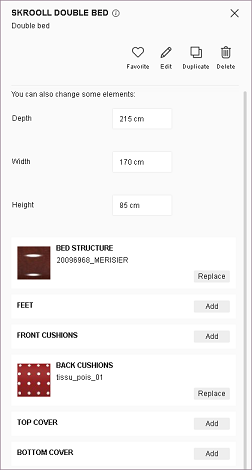
Examples:
Wall product edit options
Enter required dimensions to modify.
Click Add/Edit to add/edit sloped ceiling. Refer From the Scratch for more information.
Window product edit options
Click Replace to replace it with similar product.
Enter required dimensions to modify.
Select window positions.
Bathroom product edit options
Enter required dimensions to modify.
Click Add to add faucet.
Filter faucet by selecting required material.
Select material.
Faucet material is modified.
Click Add to add structure.
Filter structure by selecting required material.
Select material.
Structure is modified.