
Recover My Project
This section describes about options that may recover saved, unsaved incomplete projects. The "Recover Feature" allows the user to recover projects when the browser crashes, or an issue occurs in saving of a project.
Project recovery is needed to help a user if their browser crashes, machine turns off (power cut/no battery), and so.
On launching the planner, a pop-in providing the basic information of the last unsaved project appears. This pop-in includes date, time of the unsaved project.
Click Recover project to recover the last unsaved project, or click the secondary gray button to ignore the project recovery and continue your project.
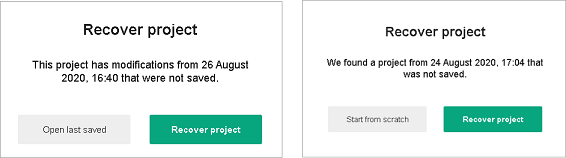
Project Recovery Options
It is possible to recover an unsaved project, when:
- User is logged-in and project is closed unsaved.
- User is logged-in and project is saved.
User continues designing, and closes the project without saving after designing. - User is not logged-in and project is unsaved.
This can be modified.
Logged-in and Unsaved
When the user is logged-in, and starts a new project, the project is saved in the local storage under the logged-in userId.
On closing the project without saving it, the project is stored in the local storage.
When re-launching the planner with the same user Id, planner prompts for recovery of unsaved project as userId is identified and a project is recovered from the local storage.
By clicking Recover project, user can recover the unsaved project.

Logged-in and Saved
When the user is logged-in, starts a new project, and saves it before beginning the design, the project is saved in the projects associated with the account.
This project is now accessible in the list of saved projects.
On beginning the designing in the saved project, the modifications and the design is stored in the local storage under the logged-in userId and saved projectId.
On closing the project without saving it again, the project is stored in the local storage.
When re-opening the same project with the same user Id, the planner prompts for recovery of unsaved project as userId and projectId is identified and a project is recovered from local storage.
By clicking Recover project, user can recover the unsaved design of the project.

Without Login and Unsaved
When the user is not logged-in, and starts a new project, the project is saved in the local storage without having an identification.
On closing the project without saving it, the project is stored in the local storage.
When re-launching the planner without the user logged-in, planner prompts for recovery of unsaved project recovered from local storage.
By clicking Recover project, user can recover the unsaved project.

Note:
- A project without a login is only possible to be recovered, when
disableRecoveryparameter is not provided in the URL.
IfdisableRecoveryparameter is provided in the URL, then the project recovery pop-in does not display.- If a user launches the planner and is already logged in, the recovery pop-in will be displayed, even if the
disableRecoveryparameter is provided in the URL.
For more information, refer to supported URL parameters for the planner.