Product Catalog
Various range item types (product, template, applicative rules, template catalogs) are placed in catalogs: Product Catalogs, Template Catalogs, Applicative Rules Catalogs, Template Catalogs.
This section illustrates the management of Product catalogs, but the same features apply to other types.
Product Catalogs are a required link between a product and the application in which it is shown. If the products don't belong to a catalog, they are not visible in the application. The relationships to keep in mind are as follows:

Create a Catalog
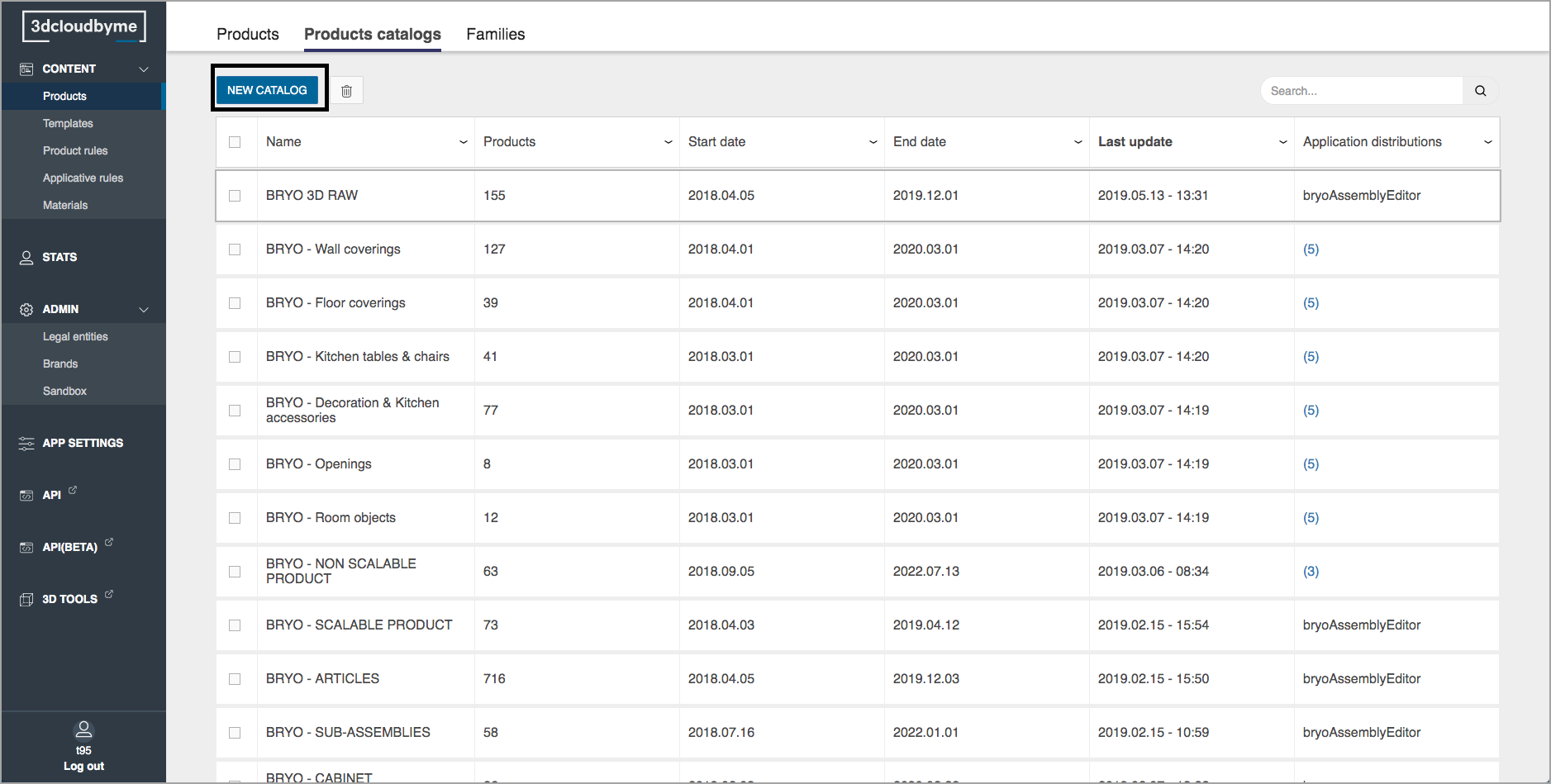
Click the "Create a catalog" button to create a catalog.
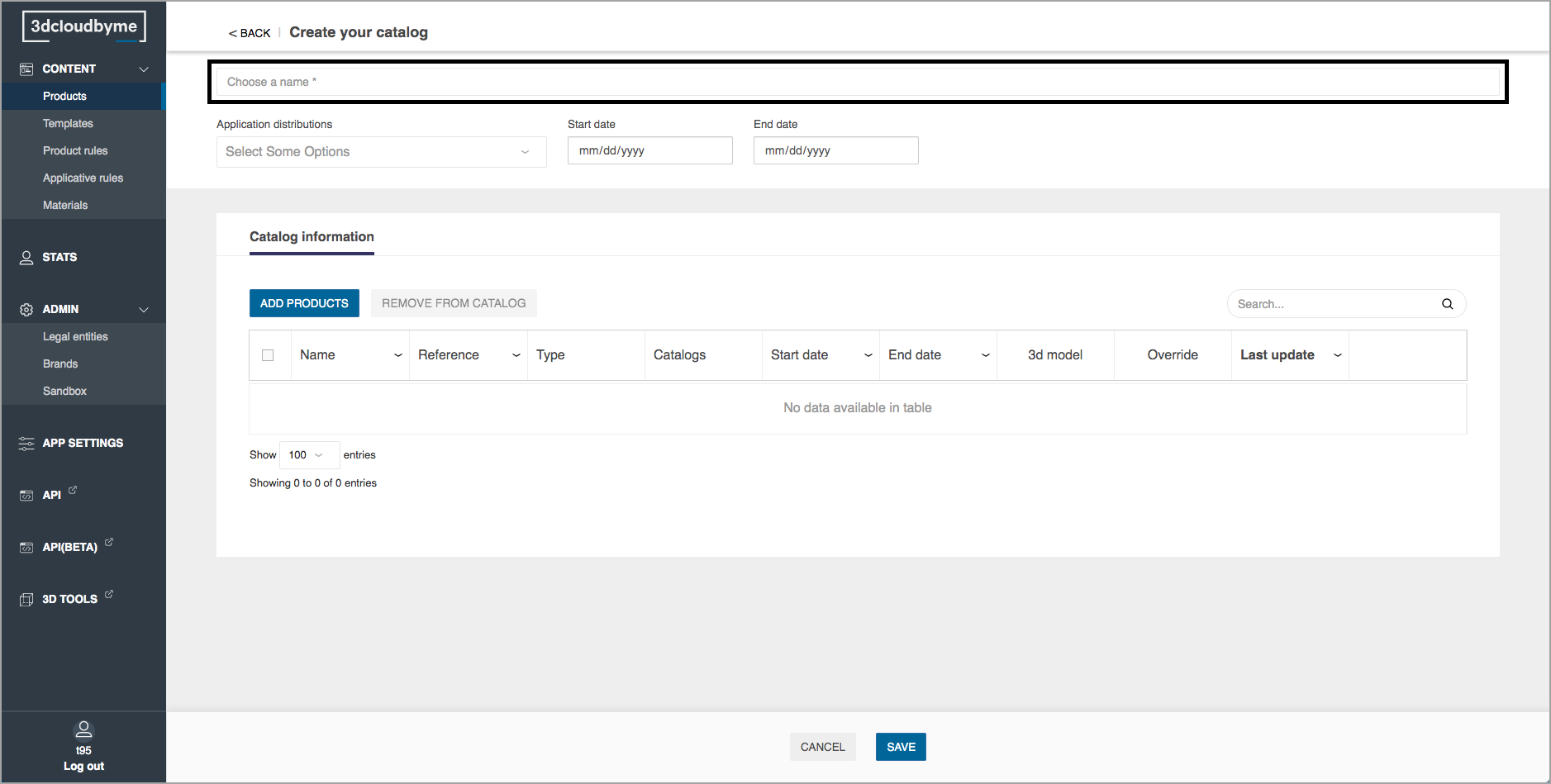
Catalog name
Each catalog needs a name.
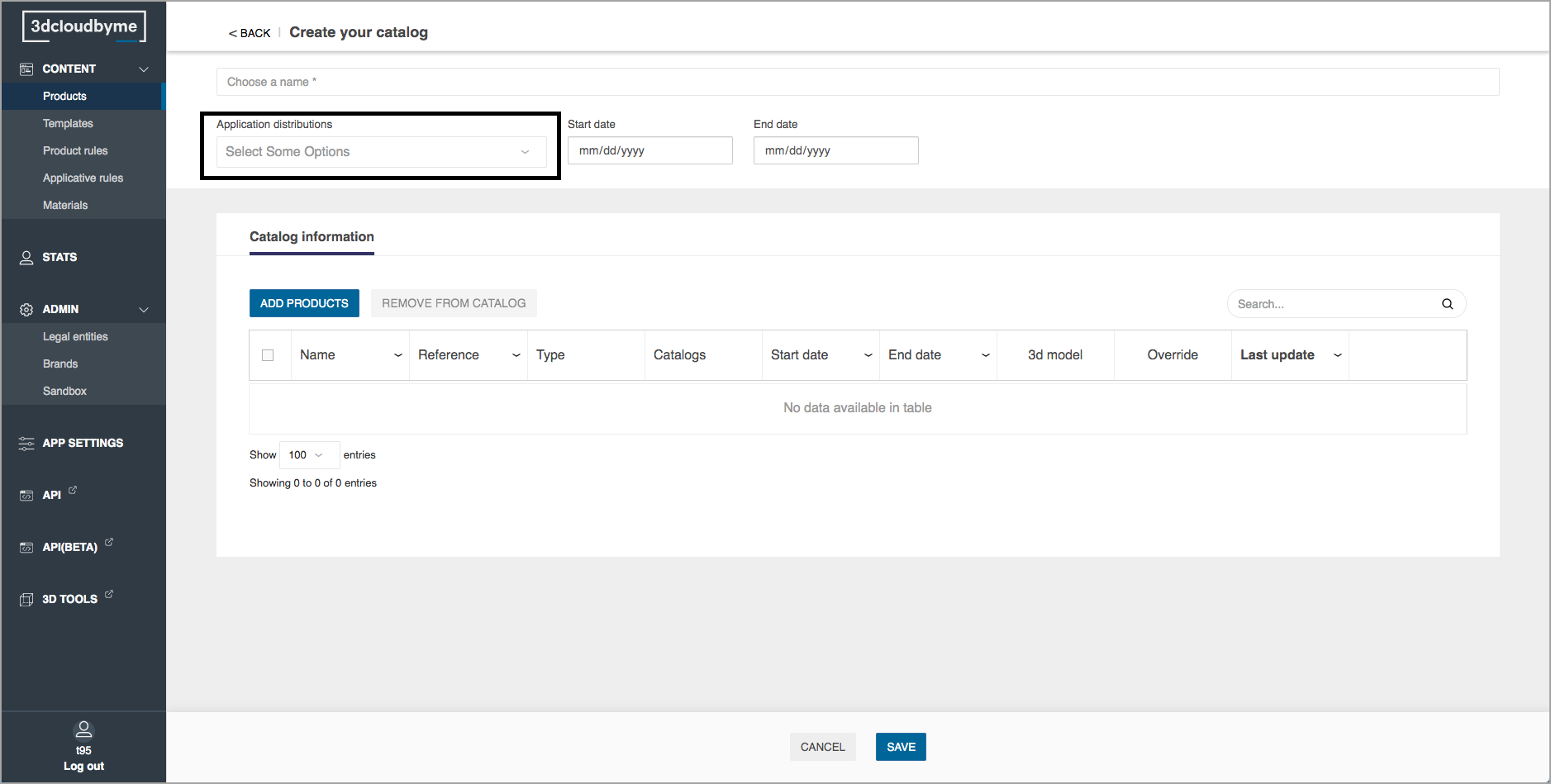
Application distribution
Select one or several Application Distribution in which the Products of this Catalog must show.
Date
Each catalog has a start date and an end date. Products within the catalogs are available in the linked consumer application within these dates. Please note that product dates overrule catalog dates.
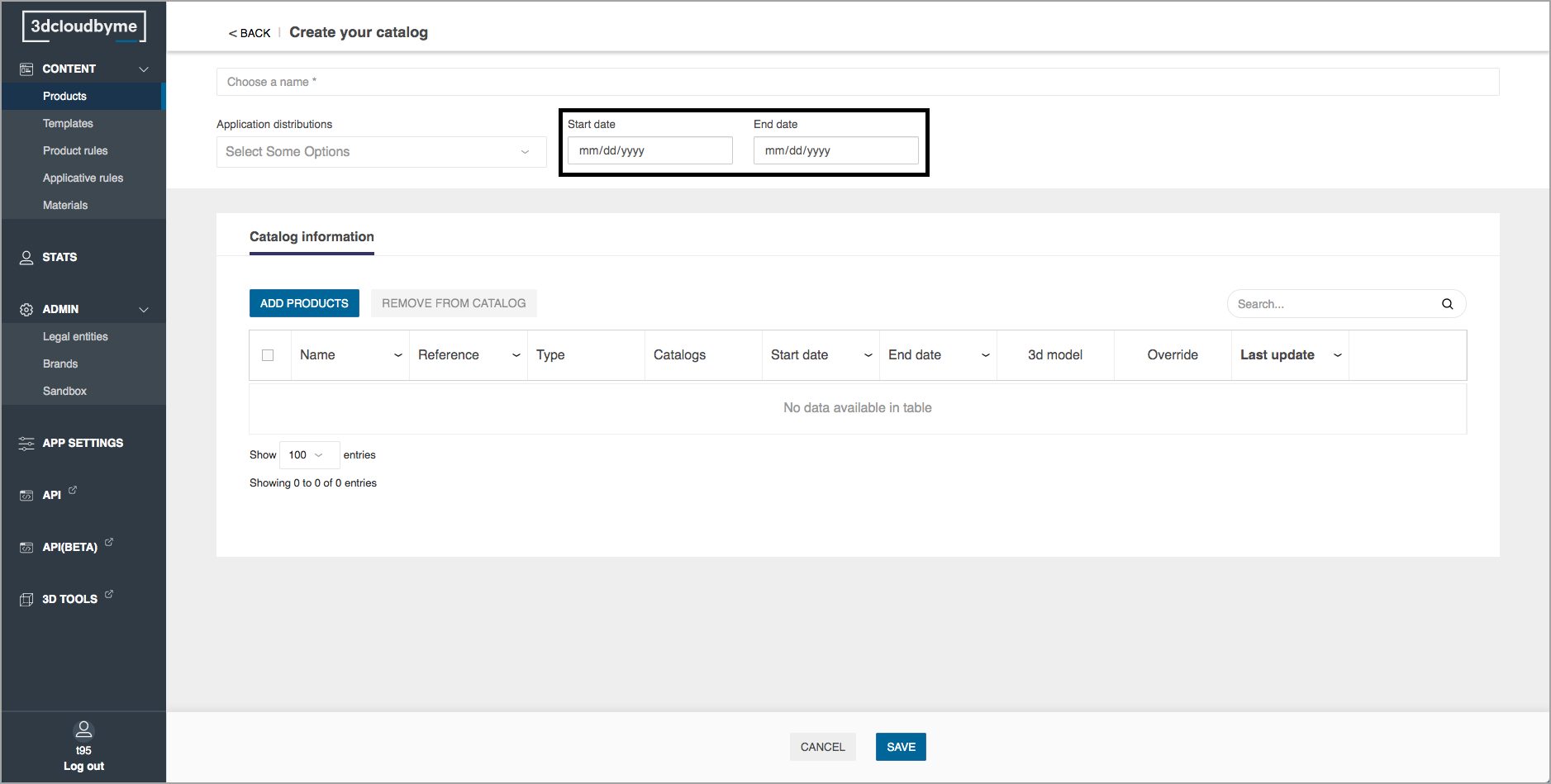
Save
After entering all these basic information, select the save button to create the catalog. If you've inserted product already at this stage, the catalog will be saved with the selected products in it.
Edit a Catalog
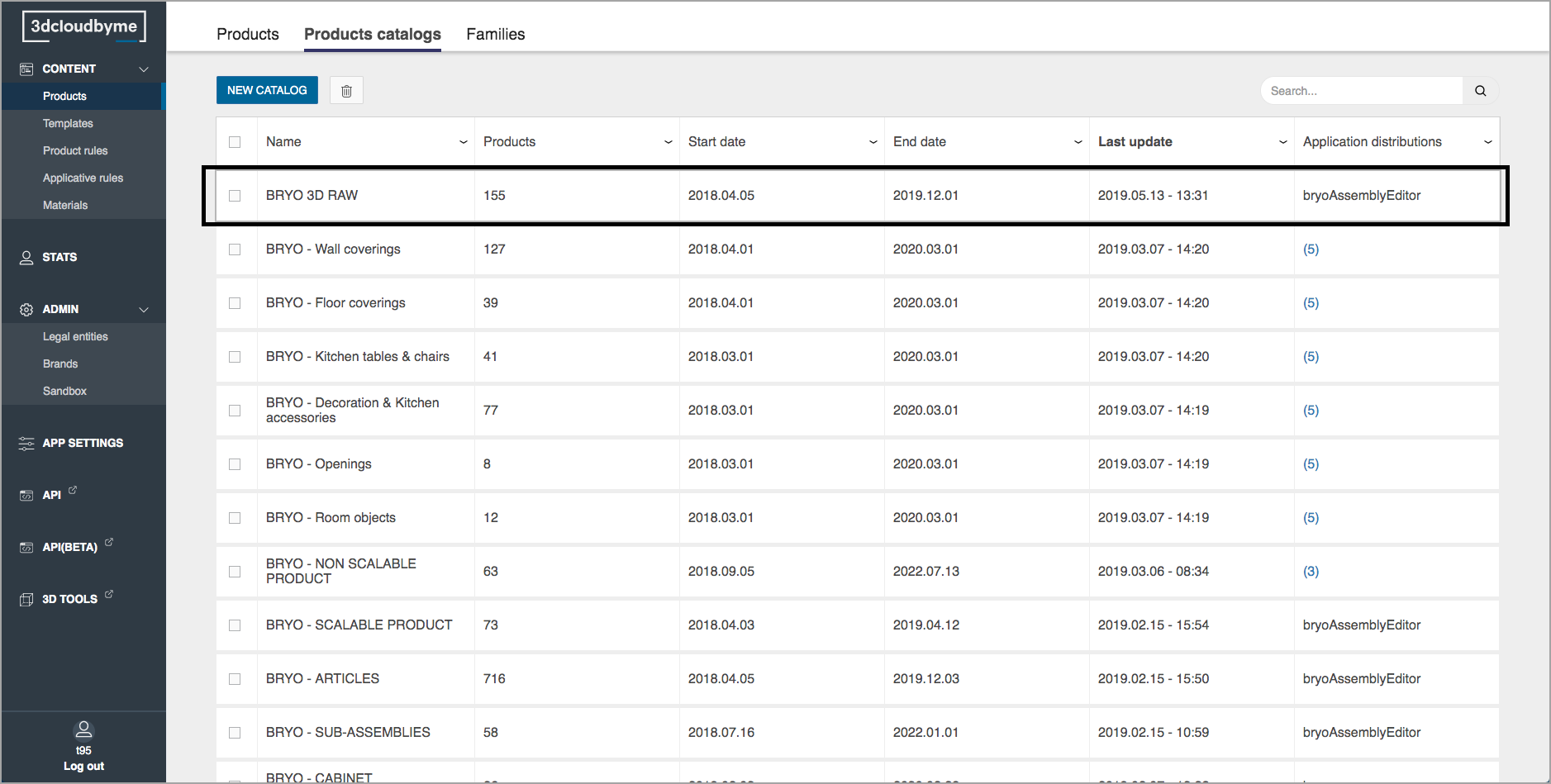
User can add items to the catalog during creation or while editing it. Select the catalog to edit by clicking on it.
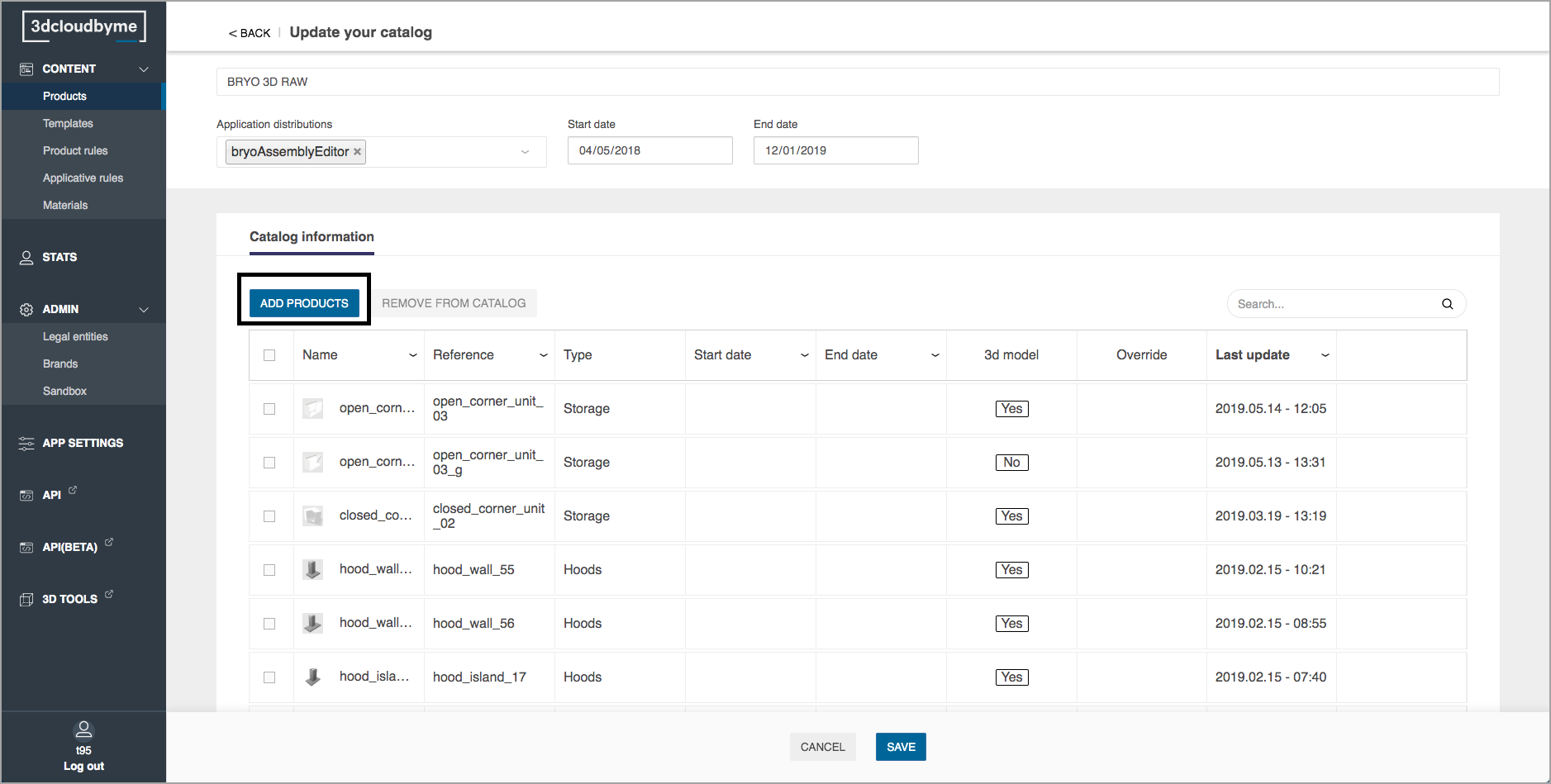
Click the "Add products" button to add products into the catalog.
Then select the products to add in the catalog.
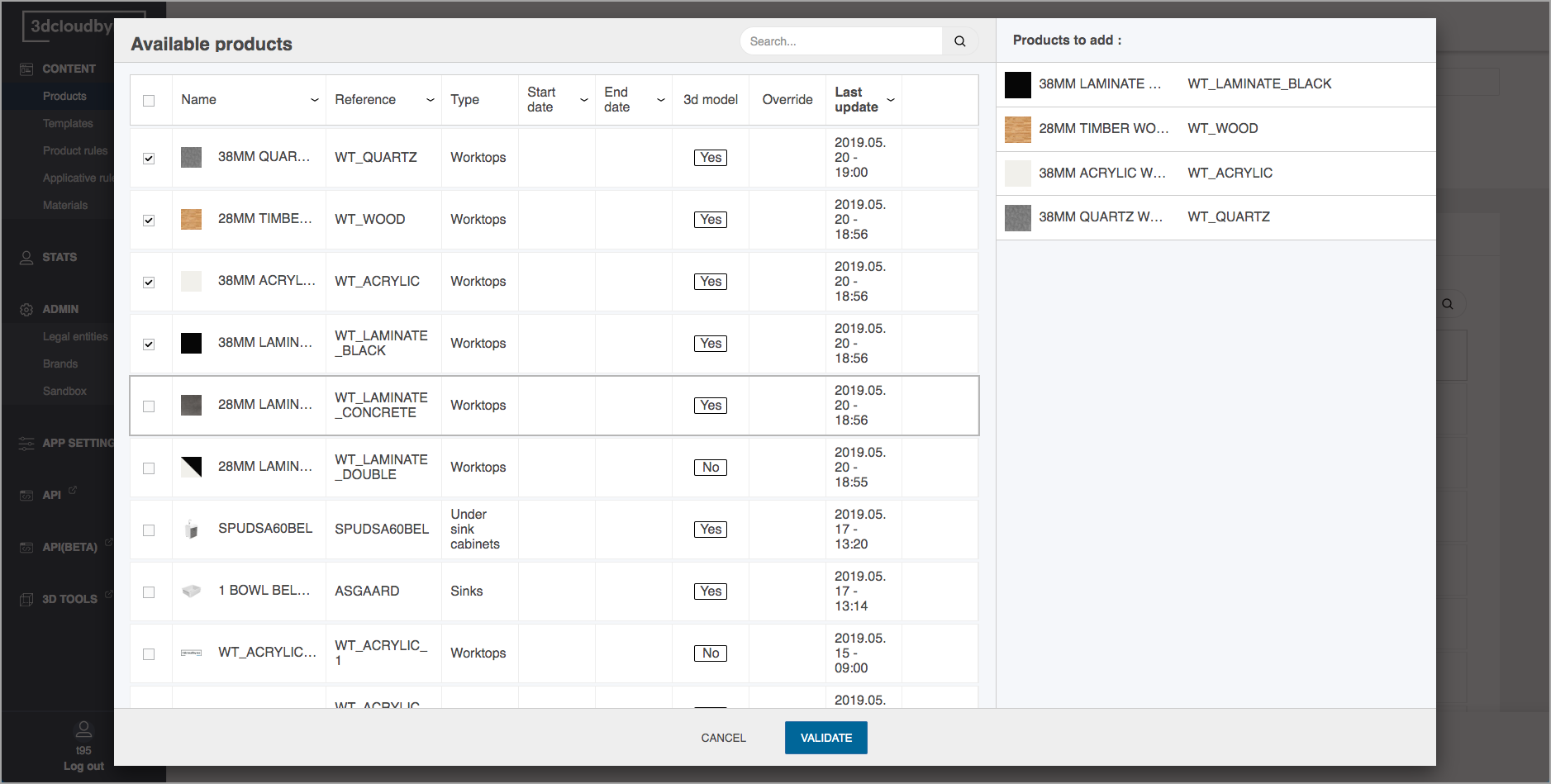
Then validate, and the products just added will be visible in the dashboard.
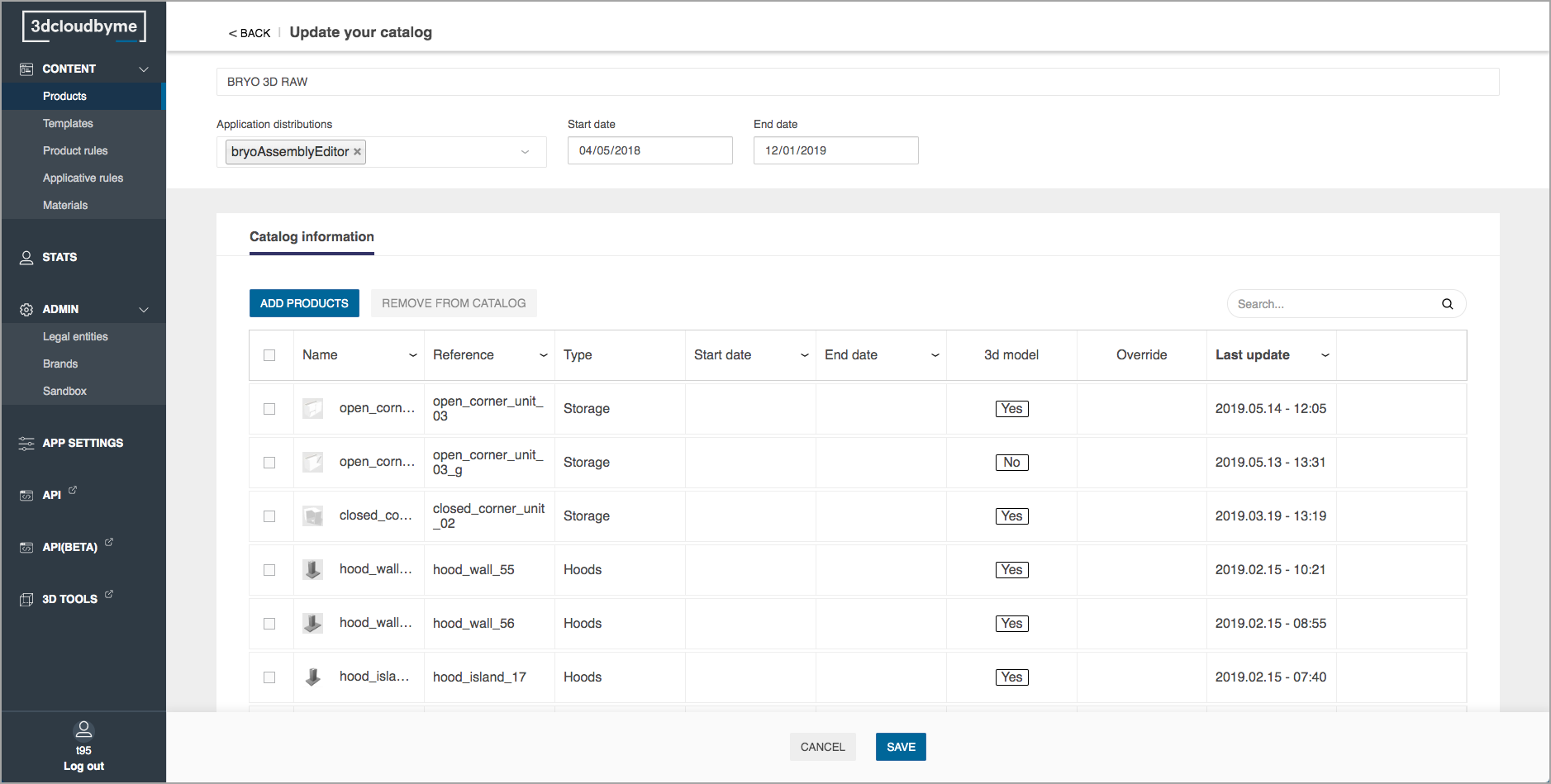
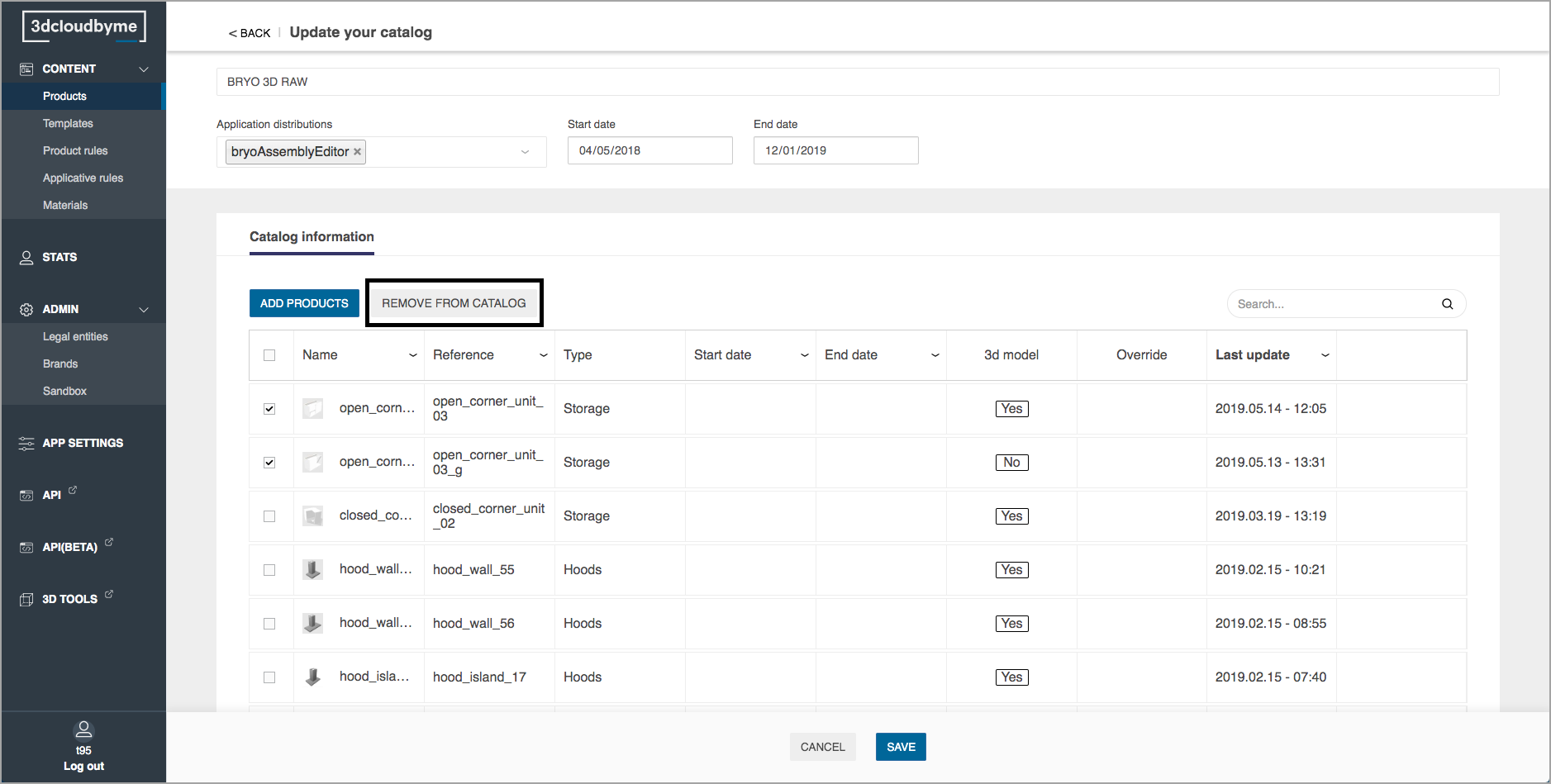
To remove products from the catalog select them in the dashboard, and click on the "Remove from catalog" button.
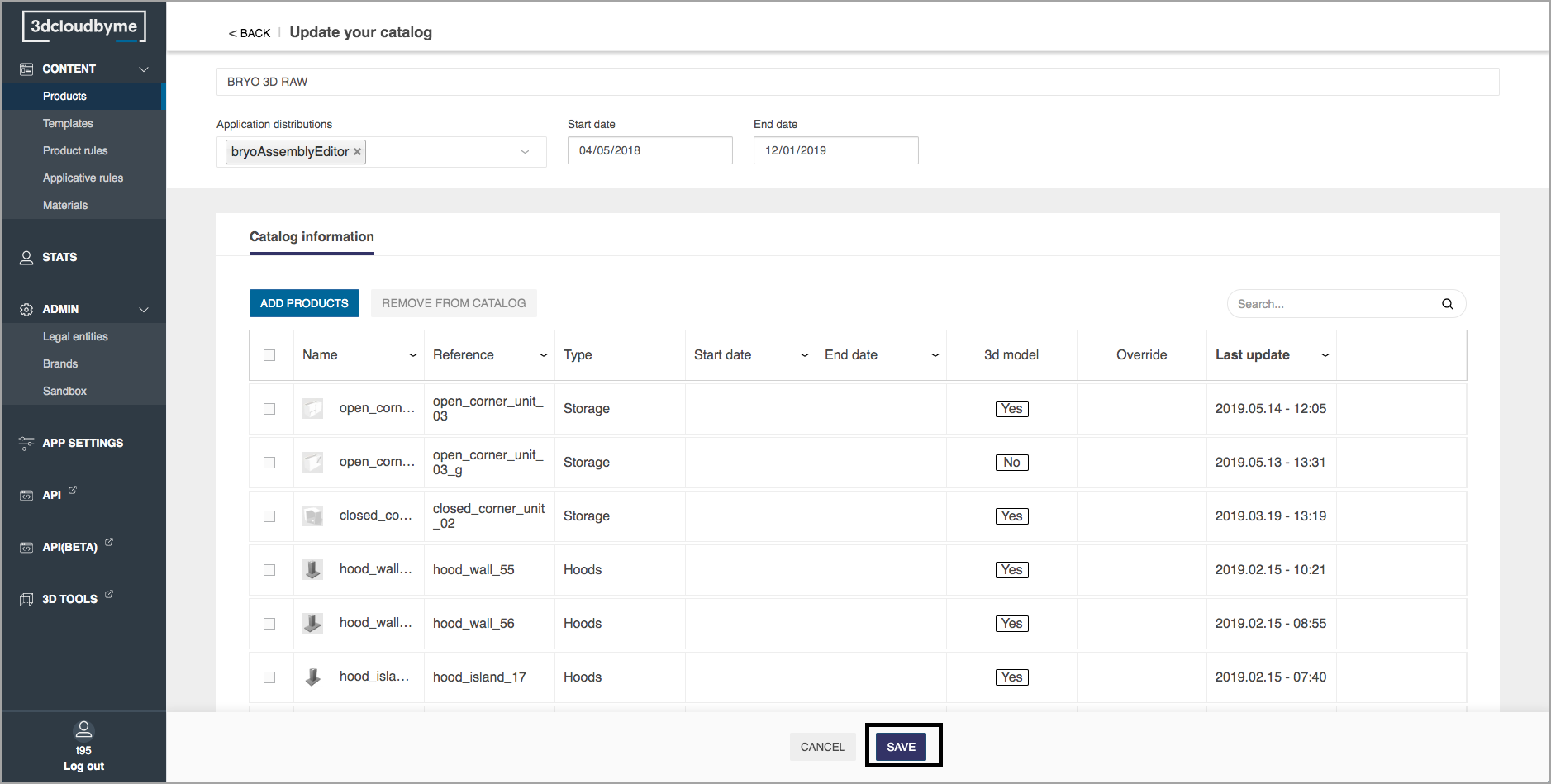
Save to validate all the changes made to the catalog.
Delete a Catalog
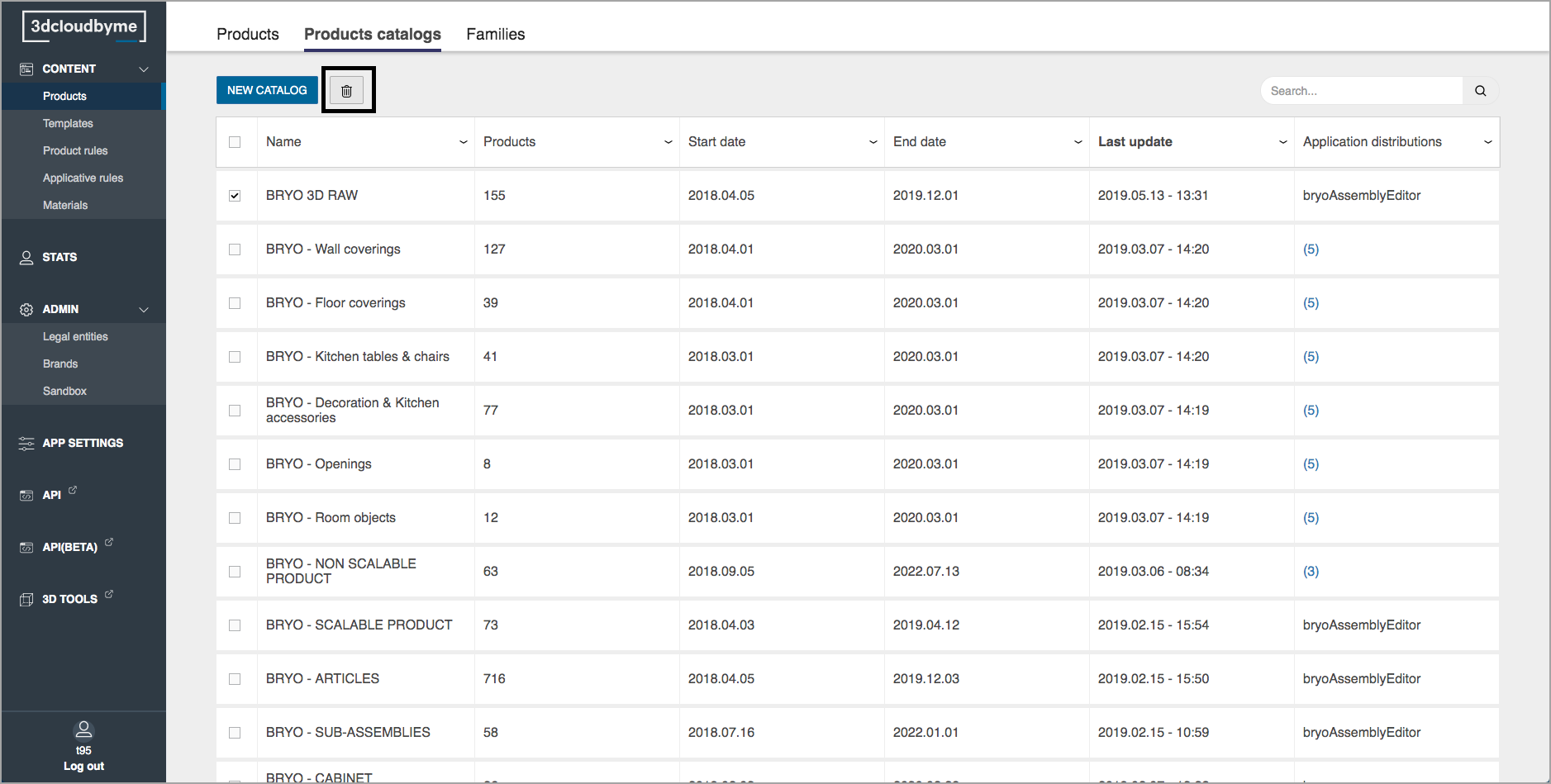
Select the catalog(s) to delete and then click on the bin to delete it. Please note that deleting a catalog does not delete the products that belong to it.