
Set Up your Range through 3DCloudByMe
3DCloud is a User Interface to the database that allows you to centralize information, resources and parameters for the products of your Range. 3DCloud interacts with Assembly Editor and the Home Planner, as illustrated below.
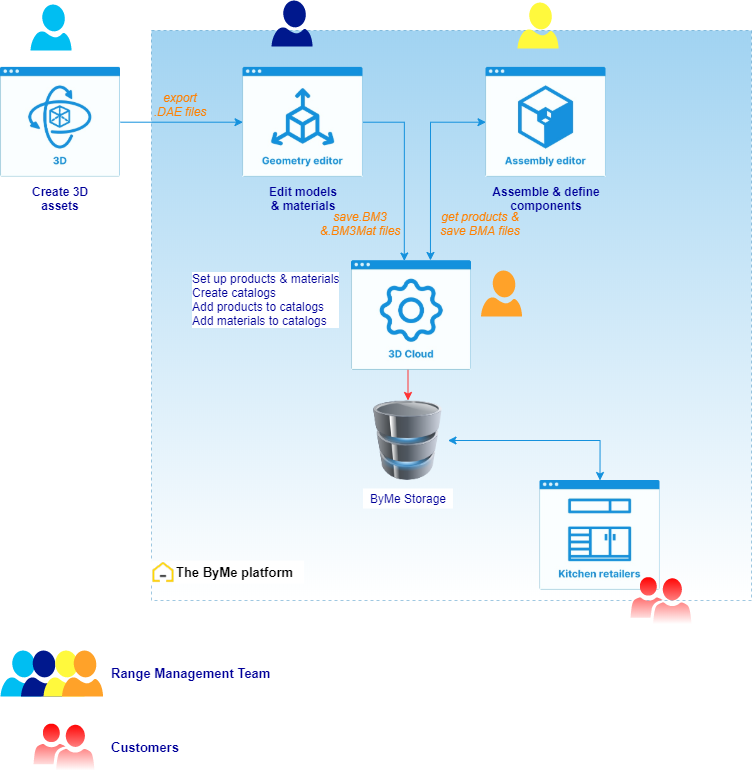
3DCloud gets BM3 and BM3MAT files from Geometry Editor, or BMA files from Assembly Editor, as 3D resources of the products/materials. Assembly Editor uses the products set up in 3DCloud as components of the assemblies. Products and materials are added to catalog and linked to one or several Application Distribution(s) to be displayed in the Home Planner.
➡️ For detailed information, see the 3DCloud Reference documentation🔗 and the Assembly Editor Reference documentation🔗.
About Parameters
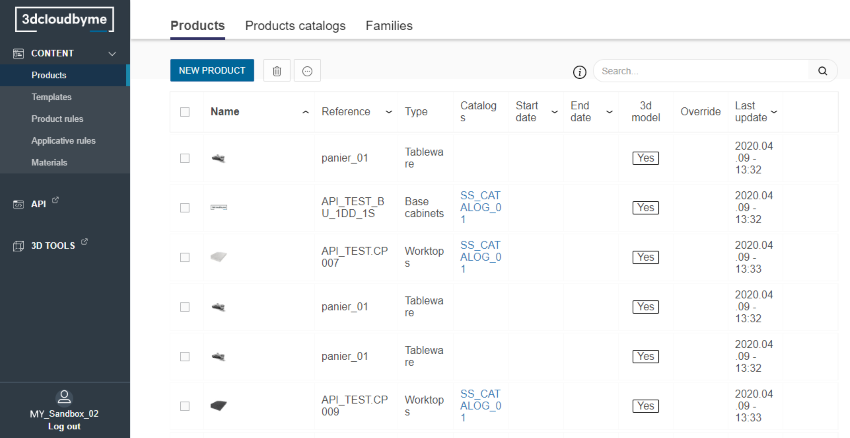
You can define the following parameters in 3DCloud from the Product representation tab.
Dimensions
Dimension parameters are strictyly mandatory. They are the only parameters that are prelisted.
width: the size on the X-axis, from left to rightdepth: the size on the Y-axis, from front to backheight: the size on the Z-axis, from bottom to top
Other dimension parameters can be defined here such as circumferences, diameters or thicknesses.
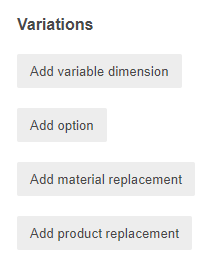
Click Add variable dimension to specify any dimension.
Options
Option parameters allows to enable options or behaviors, variants and choices or to define numbers among others.
Click Add option to specify them.
Product Variations
These parameters allow to list products that will be managed by an option set to 'true' or to list compatible products suggested to replace the default one.
Click Add product replacement to specify them.
Material Variations
These parameters allow to list materials that will be managed by an option set to 'true' or to list compatible materials suggested to replace the default one.
Click Add material replacement to specify them.
Process to Add a Parameter
You have to create the parameters and add them to the ID field. Respect the camel case: capitalize the first letter of the second and following words. E.g. wallPanelType.
📌 width, depth and height are the only prelisted parameters.
- Select the Visible, Editable and/or Translation key check boxes if need be.
- Select the parameter in the drop-down list or click Create new to add it: a. Enter the parameter ID b. Click the cross to add it to the ID field.
- Specify the name (capitalize the first letter to avoid confusion with the ID).
- Select a Type for the values:
- True / false: for booleans.
- Continuous variation: for reals, allows to enter a range of values and corresponds to input fields in the planner.
- Discrete variation: for reals, intergers or strings, allows to enter one or more values and corresponds to a drop-down list in the planner.
- Enter the possible values for the parameter.
- Define the default value (for continuous variations, the default value is in the middle of the range).
- Click Validate to save and close the window.
Visible, Editable and Translation Key
In 3DCloud, each paramater creation/edition window has the following three check-boxes:
- Visible
- Editable
- Translation key
Visible
Check this box to make the parameter visible in the Edit panel of the Home planner. This is a read option.
Editable
Check this box to make the parameter editable in the Edit panel of the Home planner: select another product, another type, change a size, etc. This is the read and write options, and thus, checking the Editable option selects the Visible chex-box automatically.
Translation key
Check this box to enable the translation of the display name of the parameter, in a single common table of the database This avoids to save the translation of each parameter in every language supported by the Application Distribution in every product table.
You do not need to enable the translation key if the parameter is neither editable nor visible.