Set Up Materials
The purpose of this page is to explain how to create and set up materials in 3DCloud.
Definitions
There is a difference between materials and products having a material as resource.
About Material as Product Resource
Defining a product with product POST endpoints🔗 of the API or with 3DCloud can be done by using a BM3MAT (the ByMe material format) as a resource.
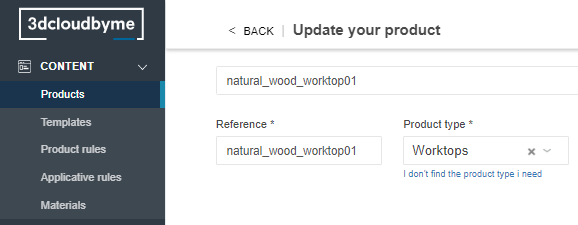
A BM3MAT asset is the representation of the visual properties of an object, such as color, shininess, reflexivity, etc. It can include several textures representing each of these properties.
📌 This case is used for all catalog items based on a texture which have a price i.e. linear products (worktops, cornices, strips, etc.); They are not “material” in the ByMe glossary, they are “products” using materials as resources and are generated by the application depending on the context.
This documentation will NOT discribe this product as material definition.
Material
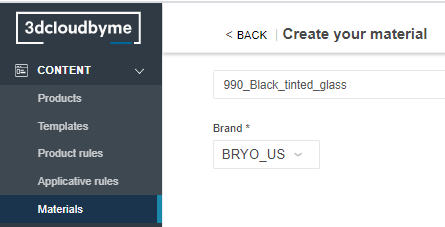
Defining a material with material POST endpoints 🔗 of the API or with 3DCloud is used for all items that are not priced but used as a parameter of other product. In this case the corresponding product shall have a material type parameter to point on the created material.
Best Practice
The best practice is to not create material products but to put material on BM3 directly, in Geometry Editor.
Specify the Basic Information
Connect to 3DCloud and click Materials on the CONTENT menu. Then, click New material.
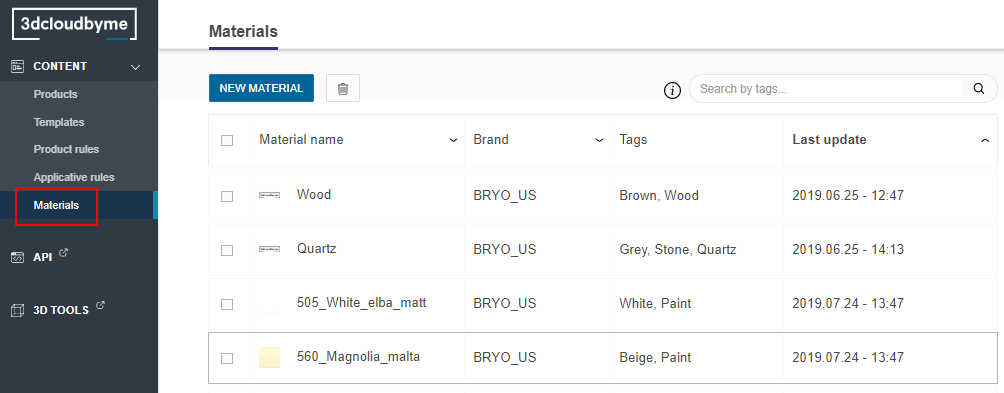
Mandatory Information
The minimum information required to create a material is common to every kind of materials.
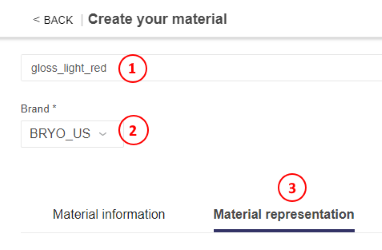
This is:
- The name: The name will be displayed in the planner (in the Edit panel) and should be available for all languages. If not, the planner will display the name in the fallback language.
- The brand: Each material belongs to a brand.
- The resource: As a resource of a material, a BM3MAT is mandatory to be compliant with Byme format.
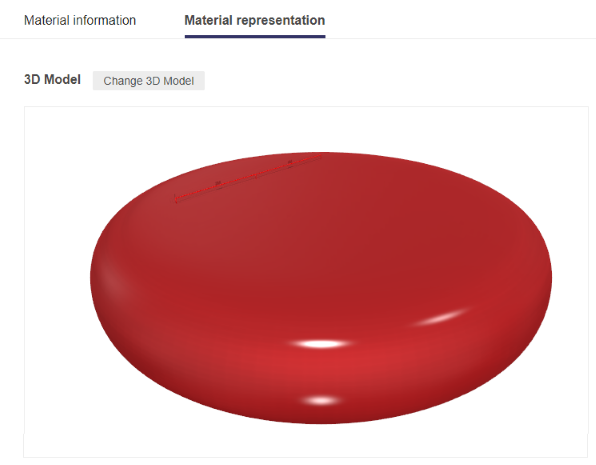
Specify the 3D Resource and the Thumbnail
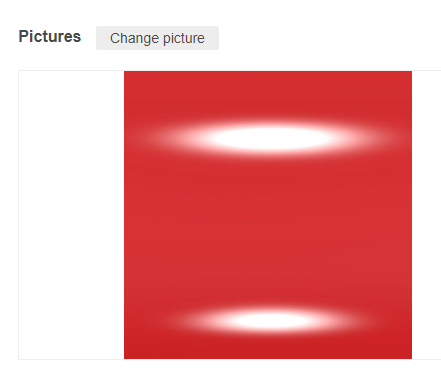
Even if not mandatory, it is strongly advised to provide a picture of the material that will be used as thumbnail in the perspective that the material is made to be shared with the customer. For example, choose a configuration in the Edit panel of the planner.
If the material is used as a resource of a linear feature (e.g. cornice), then the thumbnail is optional.
Define the Materials
Click Add material replacement to set the material parameter.
| Parameter | Type | Possible values |
|---|---|---|
material | Material variation | External dbID |
The material parameter defines the possible material(s) to use as a resource of a product. They must be available in the standard material library.
Click Add material replacement to define a material variation.
Specify the ID and the name, and add the material as illustrated below.
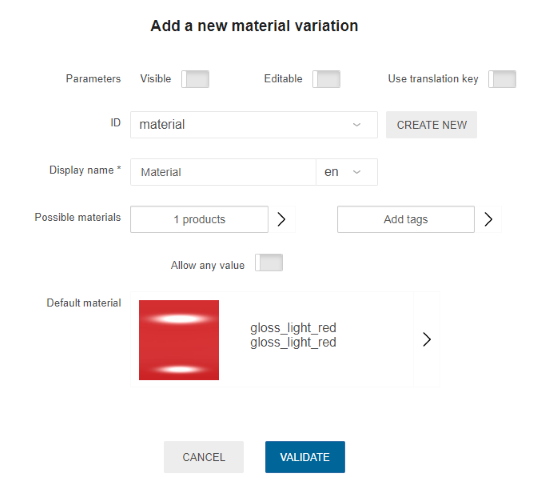
The material is now a material variation of the product.
Regarding publications on BM3, the ID of the variation material parameter should also be the ID of the publication in the BM3, as created by the Designer in Geometry Editor.